Now on the App Store · for iPhone

Smooth skin on iPhone photos
without the plastic look

Clear blemishes and smooth skin without losing its texture, fix the light, and try AI hairstyles, makeup and headshots on your own photo. Then save the whole edit as a Preset and apply it to the next photo in one tap.

3 days free on the annual plan, then $99.99 a year unless you cancel. The retouching runs on your device.

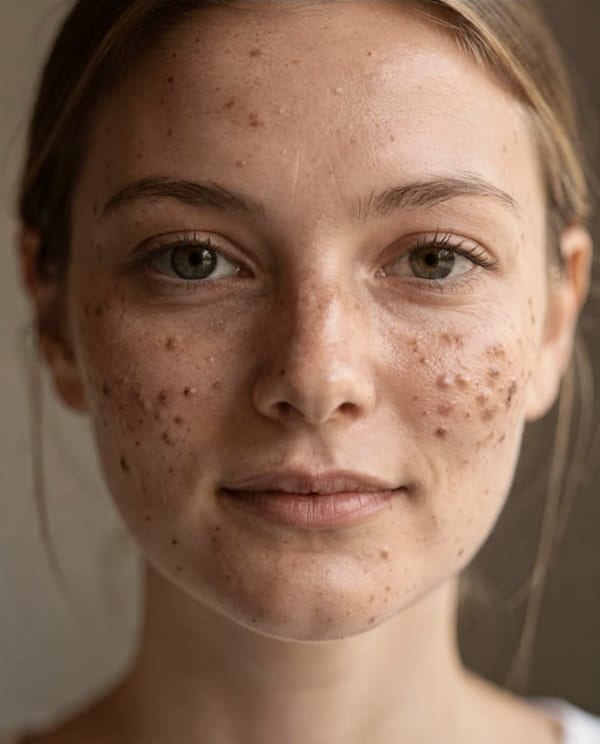
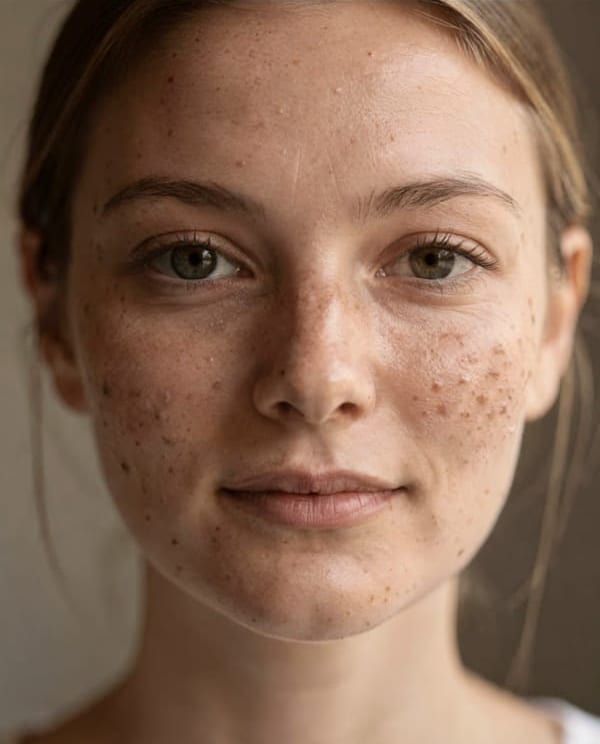
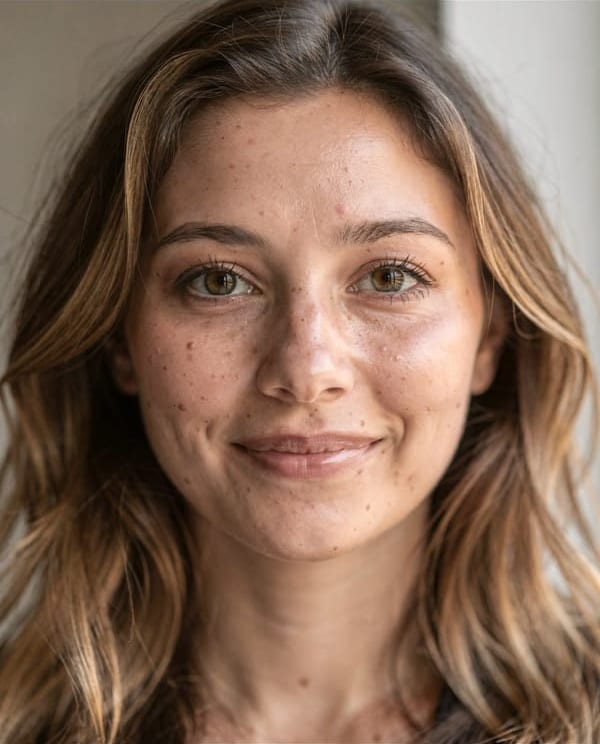
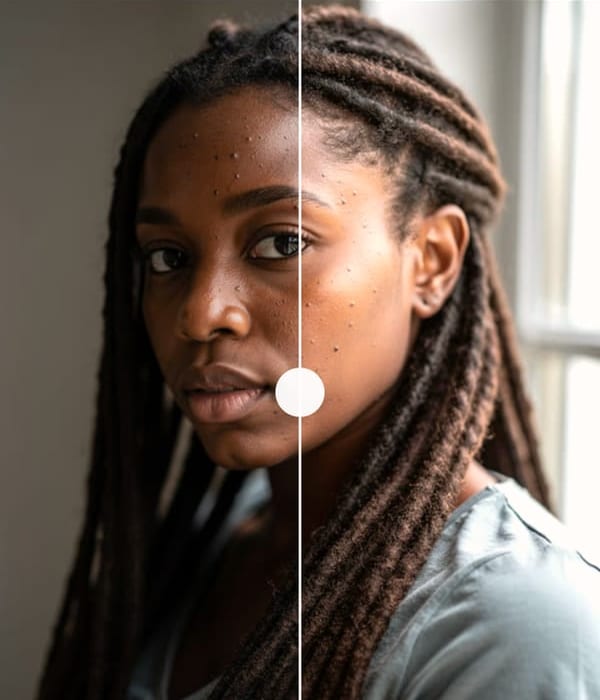
A close portrait of a young woman with dark spots across both cheeks, before and after the Heal tool: thirty-seven taps clear the largest spots, and her pores and freckles stay.BeforeAfter
Heal, 37 taps on the phone. One spot per tap, and nothing between them is smoothed.
How Heal works
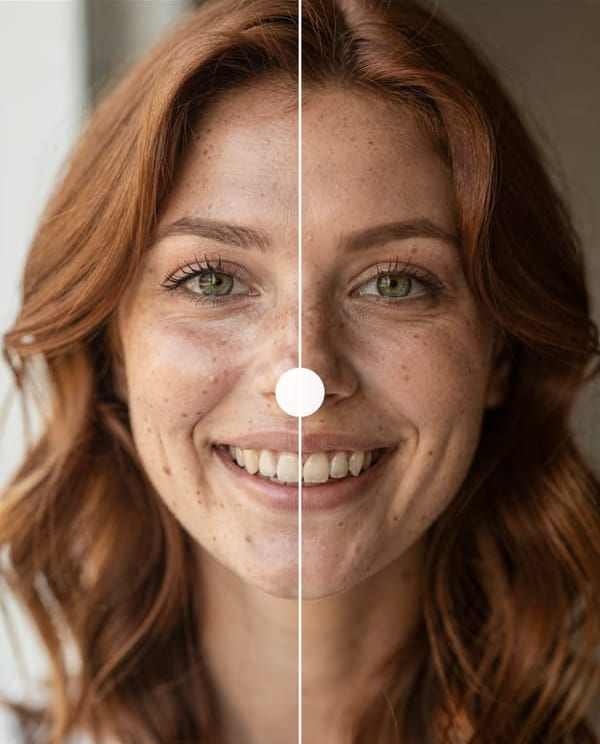
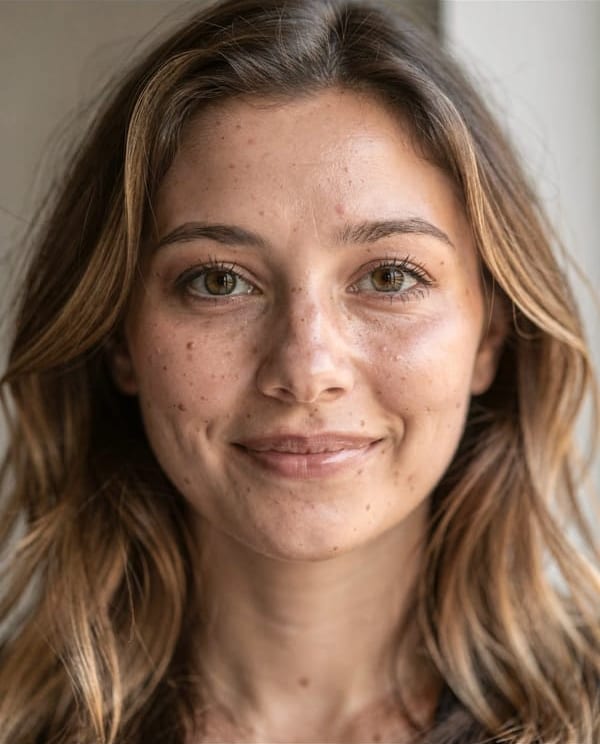
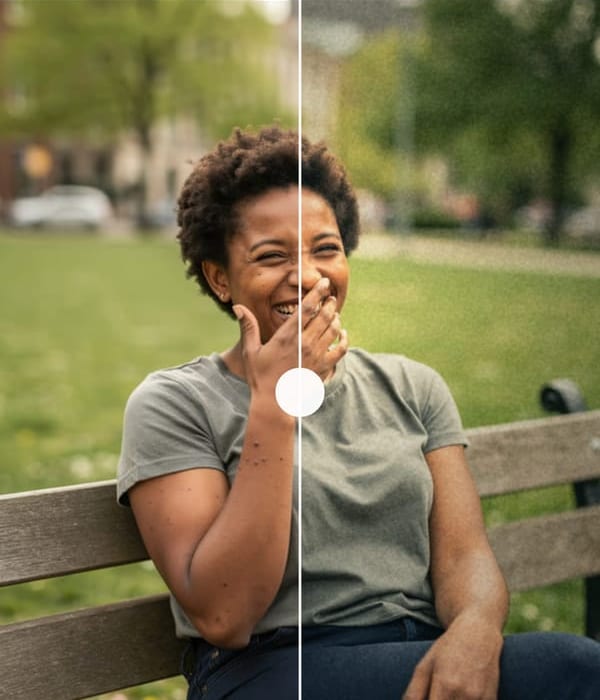
The Skin tool on a portrait of a young woman with freckles, split by the before-and-after divider: the original on the left, and on the right the same skin smoothed at 0.35 with its pores and freckles still visible. Before After
Smoothing at 0.35 in the app’s own split view, original on the left.
How Skin works
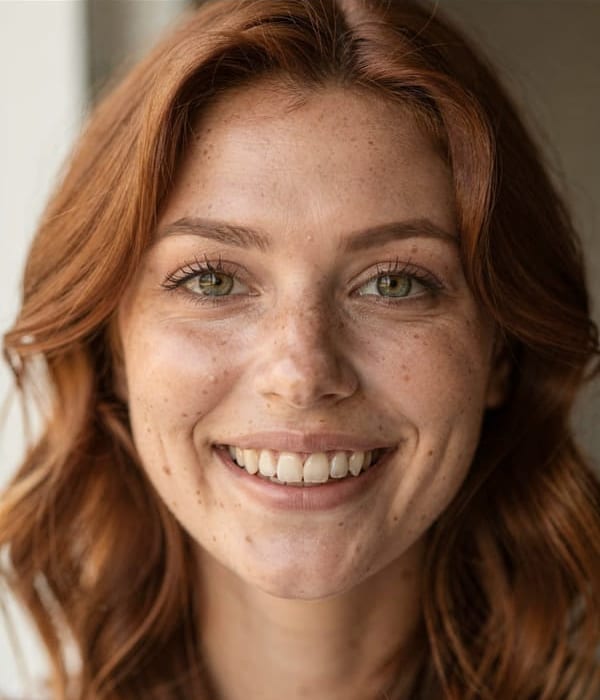
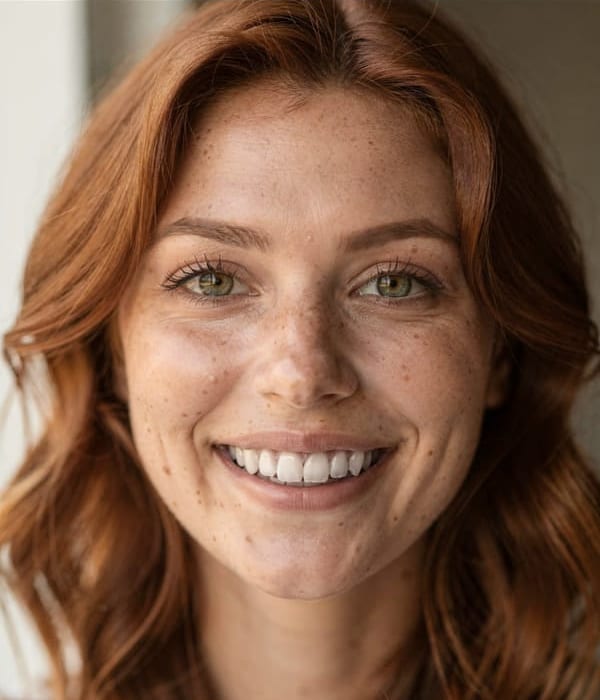
A smiling young woman with red hair, before and after the Whiten tool: at 0.63 her teeth are whiter and nothing else in the photo has changed.BeforeAfter
Teeth at 0.63, on the phone. Only the teeth differ between the two.
How Whiten works
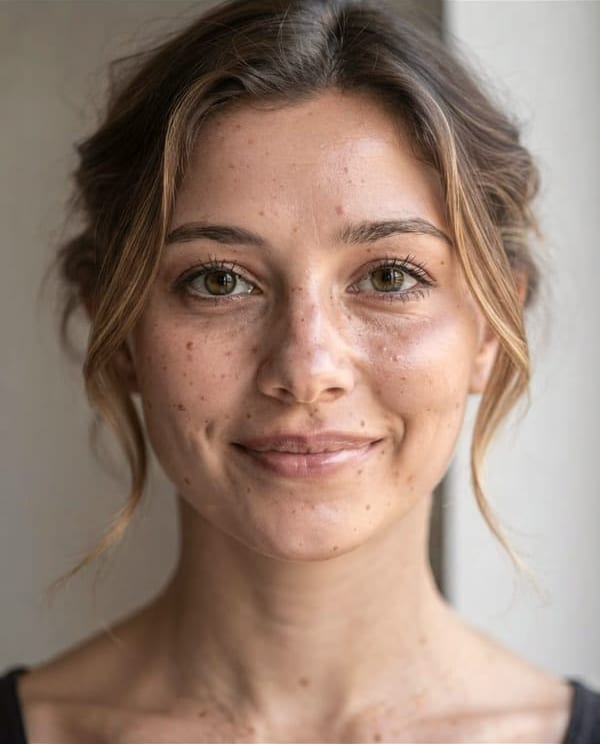
A portrait of a young woman with loose wavy hair past her shoulders, before and after Hairstyles with Tied back: her hair is gathered behind her head, and her face and freckles are as they were.BeforeAfter
Tied back, one AI edit. Her face, freckles and skin texture are the ones she started with.
How Hairstyles works
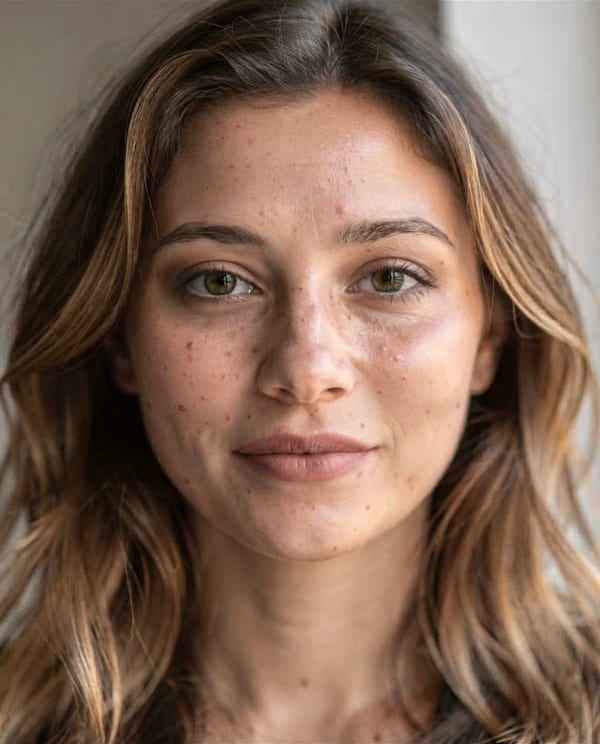
A portrait of a young woman with freckles, before and after Makeup with the Evening look: darker eye makeup and a deeper lip colour, with her freckles and skin texture still visible.BeforeAfter
The Evening look, one AI edit. Everyday, Soft and Bold are the other three.
How Makeup works
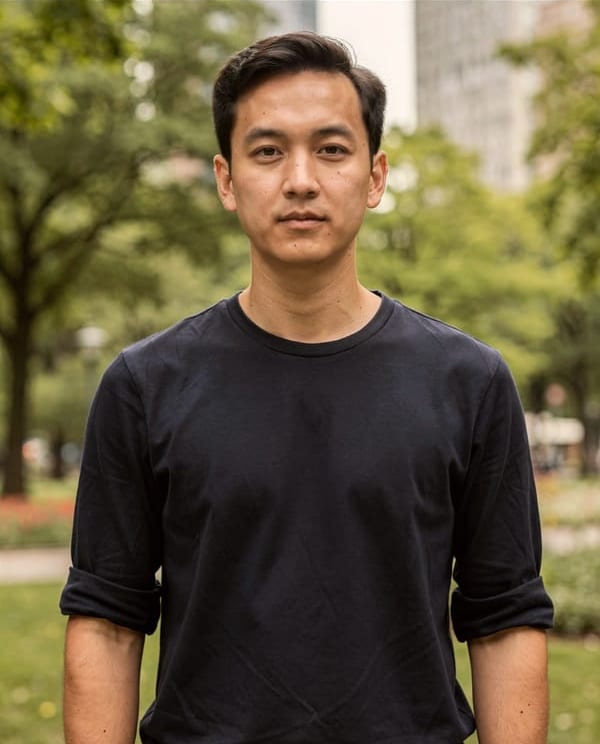
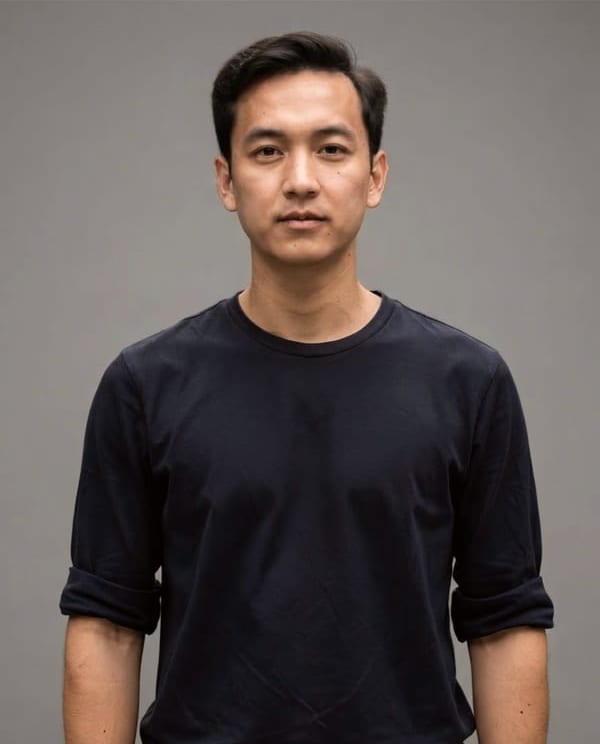
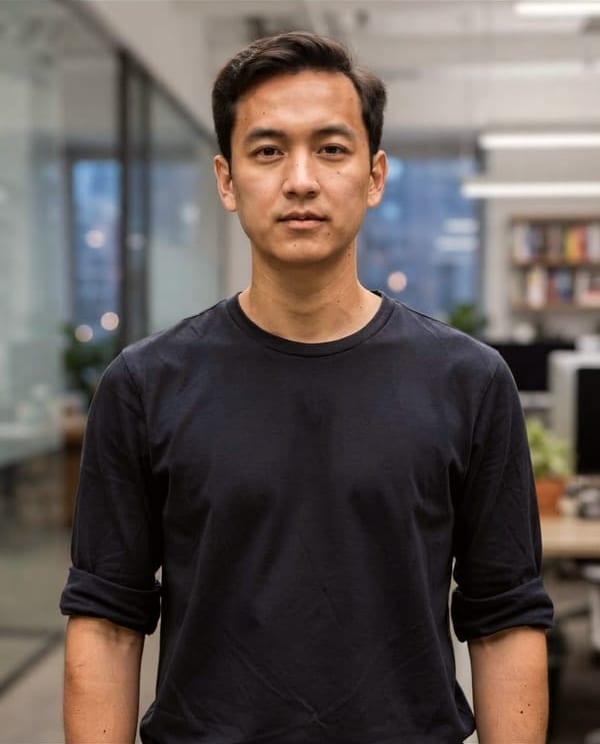
A waist-up photo of a young man in a black T-shirt in a park, before and after Headshots: the park becomes a plain grey studio backdrop with even light, and his pose, expression and clothes stay the same.BeforeAfter
One photo in, one headshot out. The pose and the expression are his own.
How Headshots works
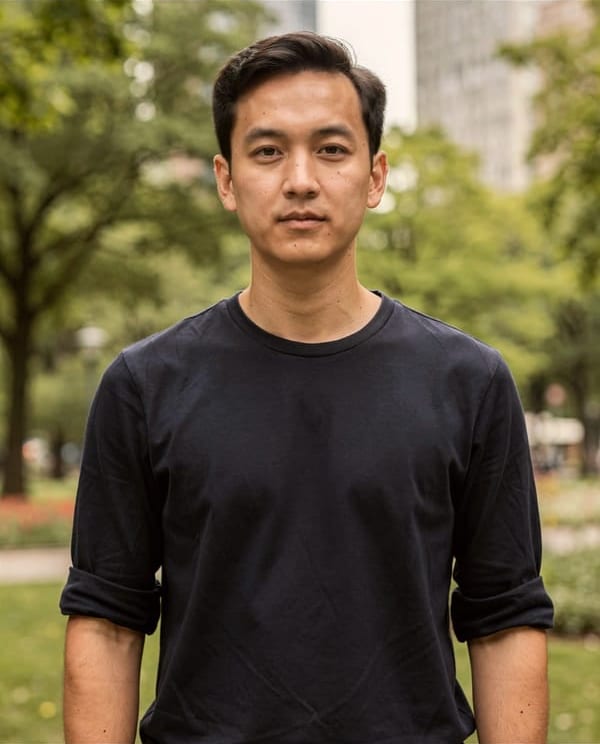
A young man in a black T-shirt in a park, before and after Backdrop with Office: the park behind him is replaced by a softly blurred office, and he is as he was.BeforeAfter
The Office backdrop. Studio, White and Outdoor are the other three.
How Backdrop works
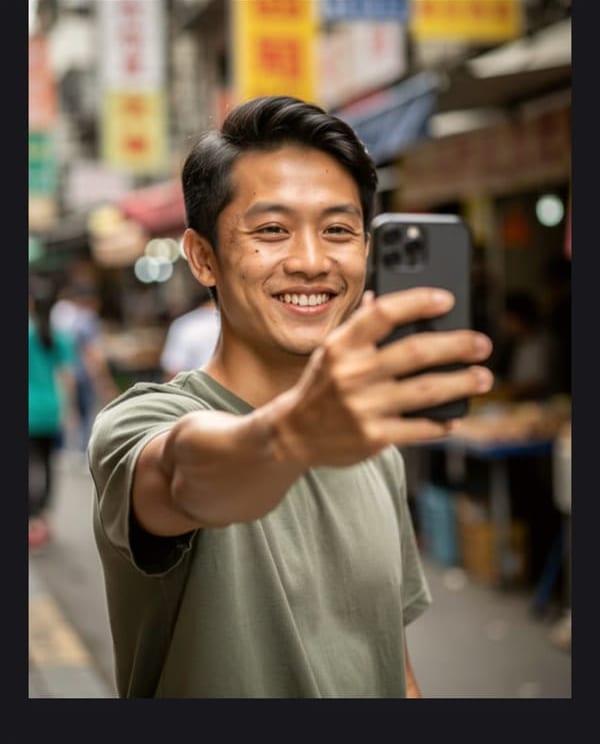
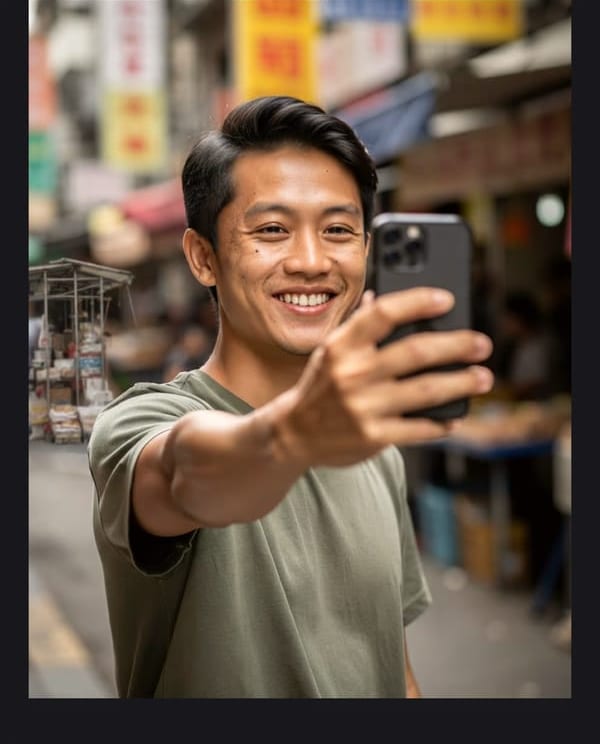
A selfie of a young man on a market street, before and after Vanish with Bystanders: the passers-by behind his shoulder are gone and the street is filled in behind him.BeforeAfter
Bystanders removed. What fills the gap is the model’s guess at the street.
How Vanish works

Pick a tool

On iPhone runs on the phone, with no connection. AI sends that one photo to the PhotoTune service, and it keeps nothing.

AI tools

AI hairstyles, makeup and headshots on your own photo

A young woman with freckles wearing the Evening makeup look, after the Makeup tool
Makeup
A young man in a black T-shirt against a grey studio backdrop, after the Headshots tool
Headshots
A young man taking a selfie on a market street with the passers-by behind him removed, after the Vanish tool
Vanish

Each AI tool changes one thing — the hair, the makeup, the clothes, the background — and is told to keep your face shape and your skin texture exactly as they are. Results vary, so every one can be undone.

  • Makeup
  • Color
  • Haircuts
  • Hairstyles
  • Beards
  • Eyebrows
  • Vanish
  • Clothes
  • Headshots
  • Backdrop

30 AI edits a month on every plan, and 5 during the free trial. An account with no subscription gets 3 to try, once. Packs of 20, 40 or 80 more start at $4.99.

Tapping one sends that photo to our service, which passes it to Google’s Gemini and keeps nothing. Everything else in the app stays on the phone.

Presets

How to save photo edits and apply them to other photos

One saved Preset carries the whole edit — smoothing, texture, lighting, colour — and applies it to another photo in a tap. No copying settings across one slider at a time.

The skin, lighting, whitening and colour settings of an edit become one reusable Preset. Apply it to the next photo and it lands correctly, because a Preset is stored against the features of a face rather than against pixel positions — a different angle, a different distance and a different face all still work.

That is the difference between an editor built for one photo and one built for all of them. A Preset is a few hundred bytes of numbers, so it costs nothing to run, and it is kept on your phone. The more you keep, the less any single photo costs you.

A colour grade is only one part of a Preset. PhotoTune ships 19 grades, and a Preset also carries the smoothing, the texture setting, the lighting, the teeth and eyes, the colour and the effects you chose.

  • Soft Warm
  • Golden
  • Amber
  • Clean
  • Bright
  • Portrait
  • Editorial
  • Muted
  • Matte
  • Film
  • Warm Film
  • Digicam
  • Mono
  • Noir
  • Chrome
  • Cool Film
  • Tungsten
  • Instant
  • Vivid
  • + yours
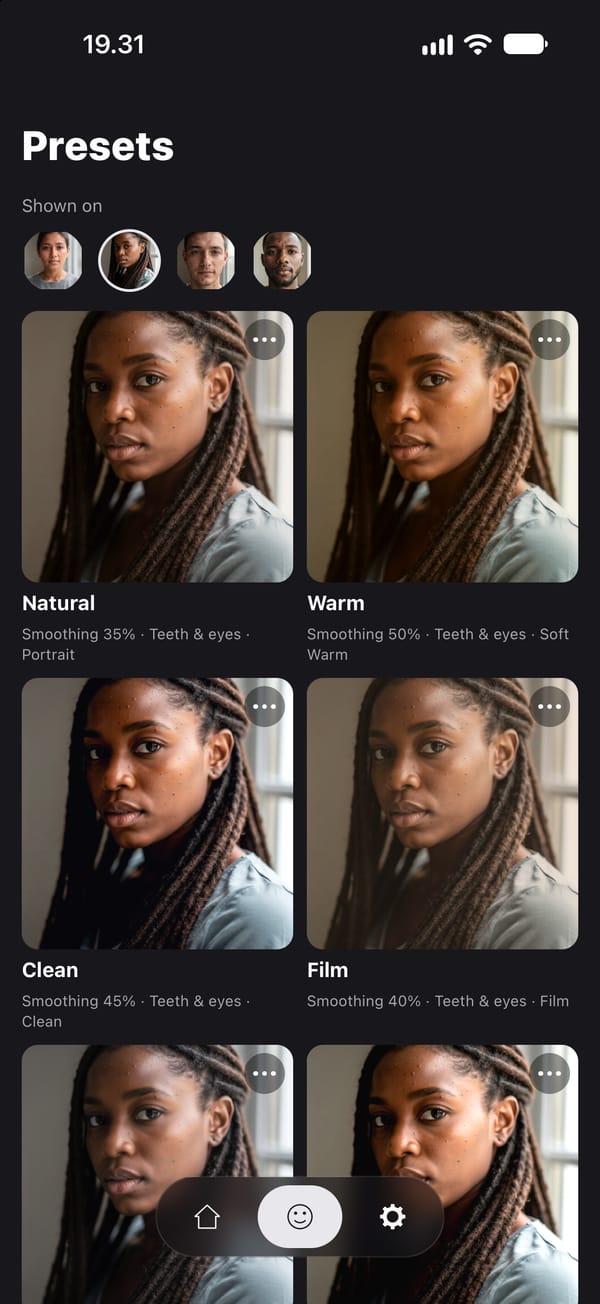
The Presets screen: one portrait of a young woman with braids shown under each saved Preset, with Natural, Warm, Clean and Film in view, and under each name what the Preset holds: its smoothing strength, teeth and eyes, and a colour grade

How it works

How to smooth skin on iPhone and save it as a preset

Four steps. The fourth is what makes the second photo faster than the first.

  1. 01

    Open a photo

    Pick one from your camera roll. Face detection runs on the phone — 478 landmarks, no connection — and the points are discarded when you close the photo.

  2. 02

    Adjust it

    Skin, lighting, colour, teeth and eyes. One strength dial per tool rather than fourteen. Nothing moves the geometry of a face, because no control exists that could.

  3. 03

    Save it as a Preset

    The whole edit becomes one named thing — not a filter laid over the top, but the actual set of parameters you just built, stored against facial landmarks.

  4. 04

    Replay it on the next photo

    Open another photo and tap the Preset. Different angle, different distance, different face — it still lands. This is the step the rest of the category does not have.

Reshape

How to reshape a photo by hand, face or full body

Four brushes that move only what you drag — on a close portrait, a half-body shot or a full-length photo.

  1. Reshape Drag to move what is under the brush.
  2. Refine The same push, gentler — for edges and small details.
  3. Resize Hold on an area to enlarge or shrink it.
  4. Restore Brush over an area to put it back as it was.

It works on a half-body or a full-length photo as well as on a close portrait. Nothing is detected and nothing is suggested: the reshape stays with the photo it was made on, a Preset never carries it to another one, and no automatic adjustment can change a shape.

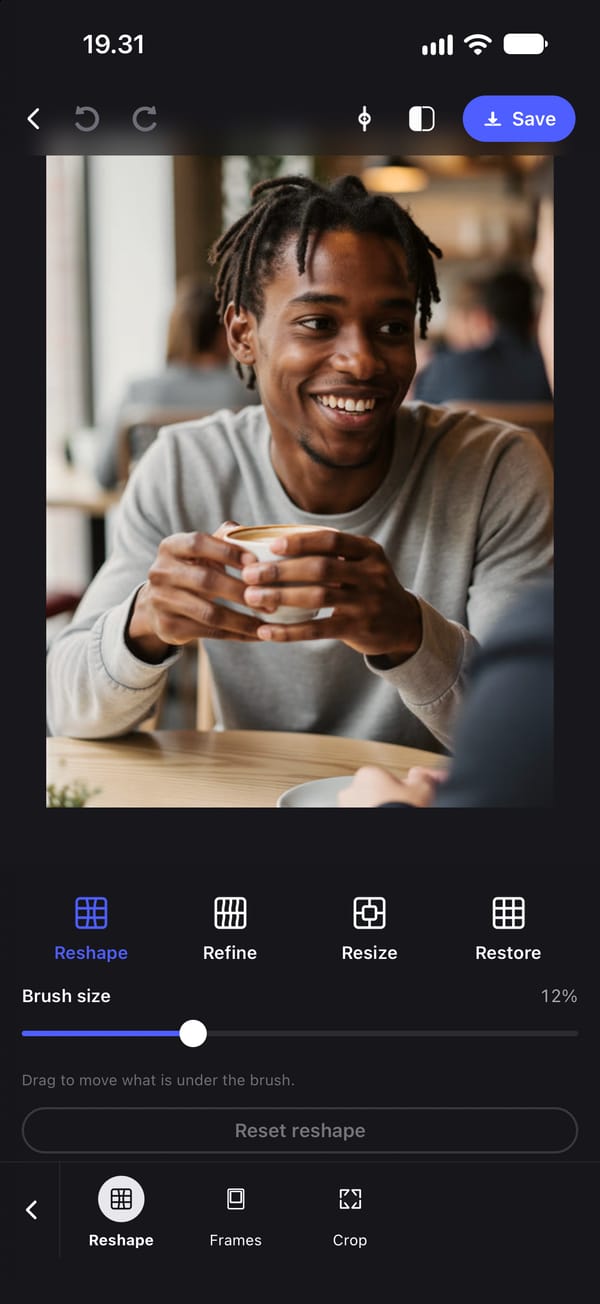
The Reshape panel open on a half-body photo of a young man sitting at a café table in a grey jumper, holding a cup, with Reshape, Refine, Resize and Restore below the photo and the hint: drag to move what is under the brush
Reshape on a half-body photo
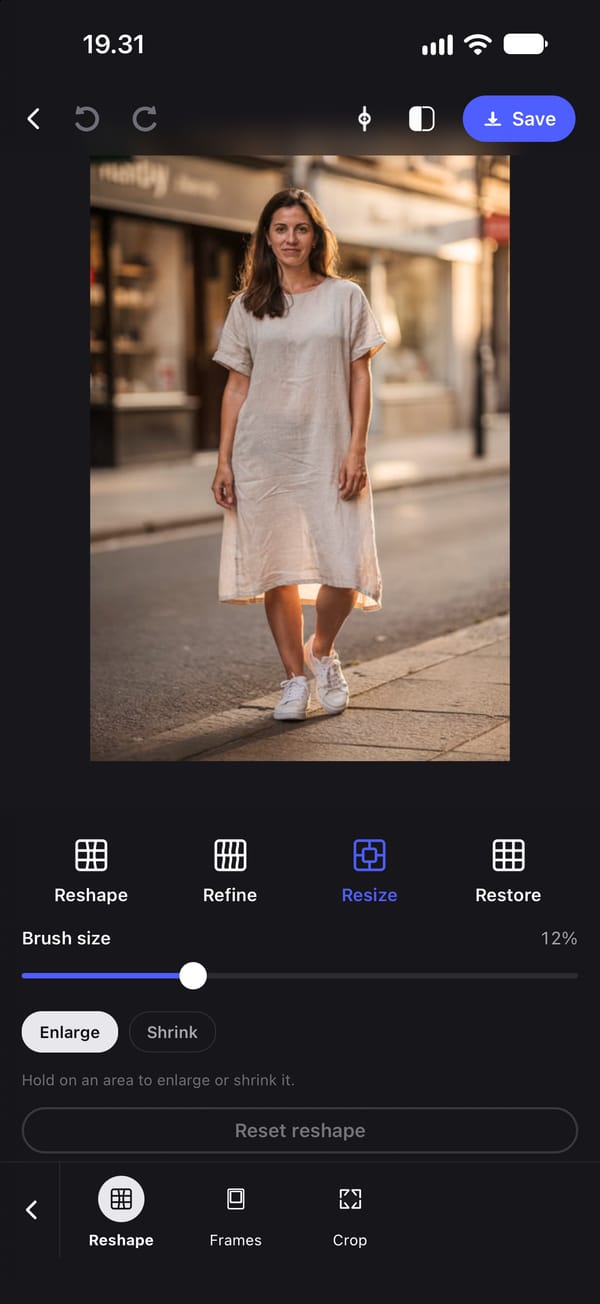
Resize selected on a full-length photo of a young woman standing on a sunny street in a linen dress, with Enlarge and Shrink below the brush size and the hint: hold on an area to enlarge or shrink it
Resize on a full-length photo

Both photos are synthetic — generated, not photographed. No real person is depicted.

Skin and texture

How to smooth skin without losing the texture

Blurring is what makes edited skin look plastic and waxy. Three decisions here go the other way, and each one costs a feature other skin smoothing apps sell.

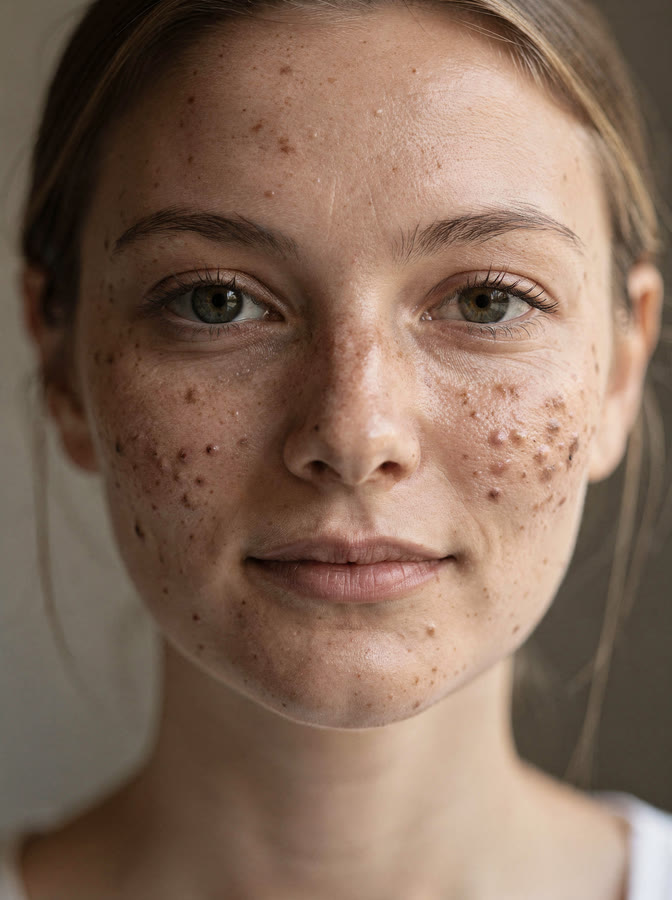
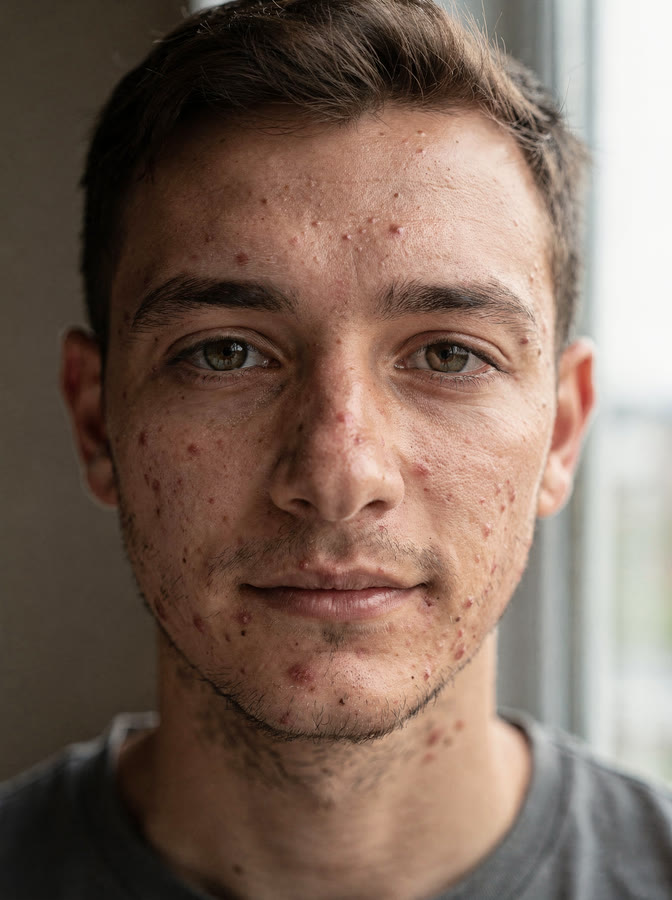
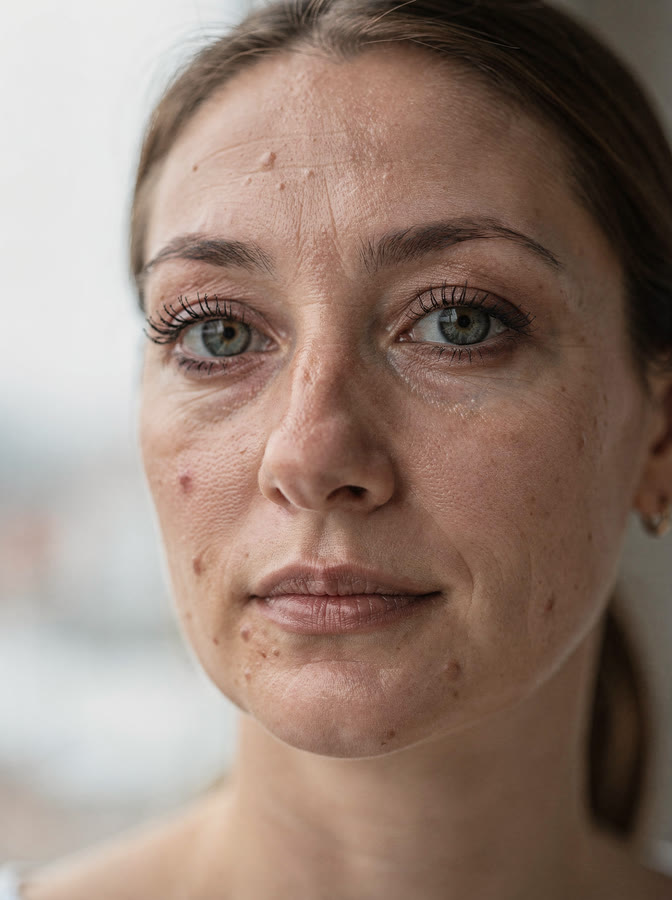
Portrait of a young woman with visible pores and uneven skin texture

Skin keeps its texture

Most apps smooth by blurring, and a blur takes the pores with it. PhotoTune separates the fine detail from the tone, smooths the tone, then puts the detail back. At full strength it still returns 35% of that detail. The floor is fixed in the app rather than left to a slider, so there is no combination of settings that produces plastic skin.

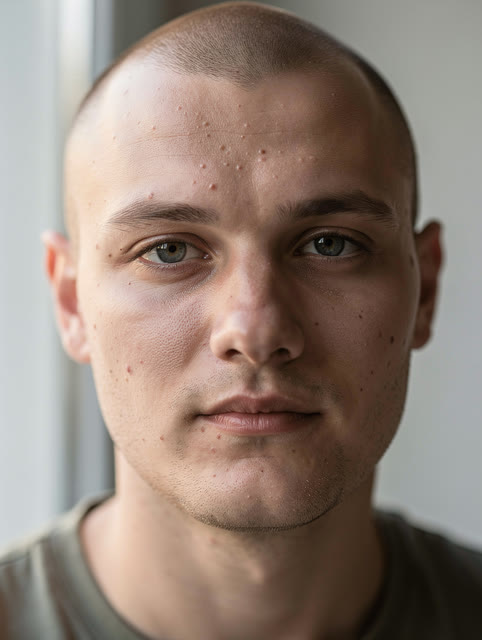
Portrait of a young man with a shaved head

Nothing changes shape unless you move it

There are no one-tap face-shape controls — no jaw, chin or nose slider. Reshape moves exactly what your finger drags and Restore brushes any of it back. A Preset never carries a reshape to another photo, and an automated check refuses any build in which an automatic adjustment can change a shape. Other apps in this category lead with one-tap face-shape tools; this one leaves the person who was actually there.

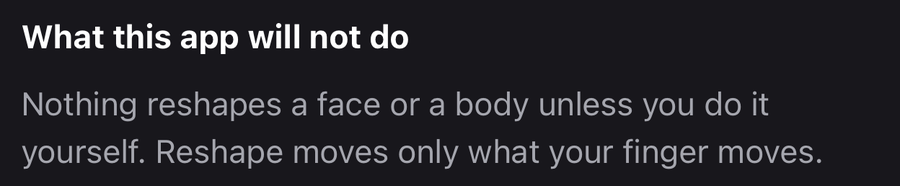
An excerpt from the app's own first-run disclosure, headed 'What this app will not do' and reading 'Nothing reshapes a face or a body unless you do it yourself. Reshape moves only what your finger moves.'

From the app's first-run disclosure, before it has been shown a photo

The editing happens on your phone

Detection, every adjustment and the export run on the device with no connection at all. The ten AI tools are the exception: tapping one sends the photo you have open to our service, which passes it to Google's Gemini and keeps nothing. Nothing you do not tap is ever sent — and the app says so before it has seen a single photograph.

Tested against

Skin smoothing tested on freckles, deep skin tones and glasses

Freckles, pores, deep skin tones, glasses, weak indoor light. Each one is captioned with the specific thing that makes it hard.

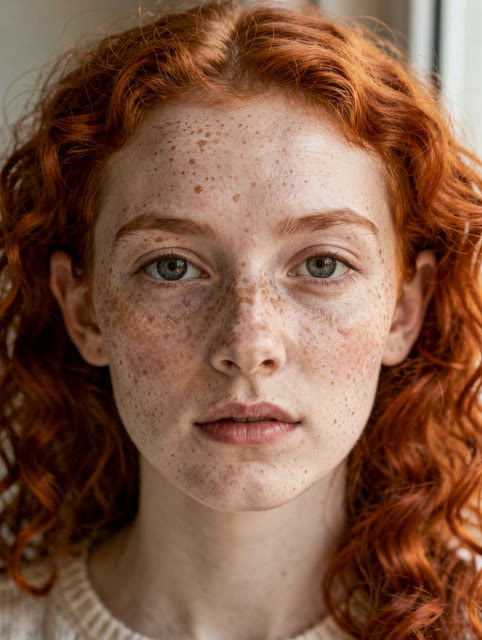
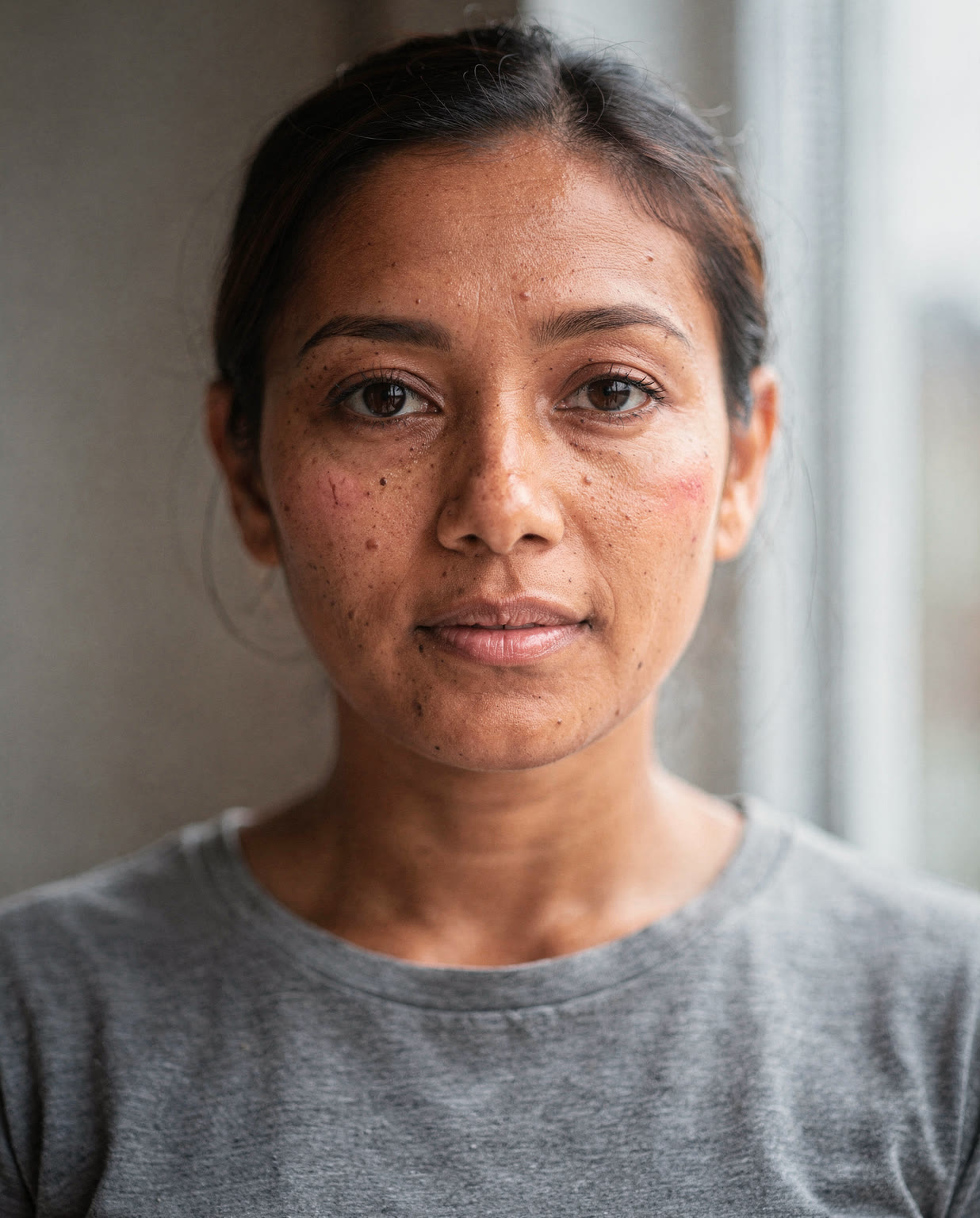
  • Portrait of a young woman with freckles and red curly hair
    Freckles Freckles and moles survive smoothing at any strength.
  • Portrait of a young man under weak indoor light
    Weak indoor light Exposure is metered on skin, not on the whole frame.
  • Head and shoulders portrait of a woman looking into the lens
    The reference face The face every Preset in the app is previewed against.
  • Portrait of a young woman with visible pores and uneven skin texture
    Pores Smoothing keeps at least 35% of the fine-detail layer.
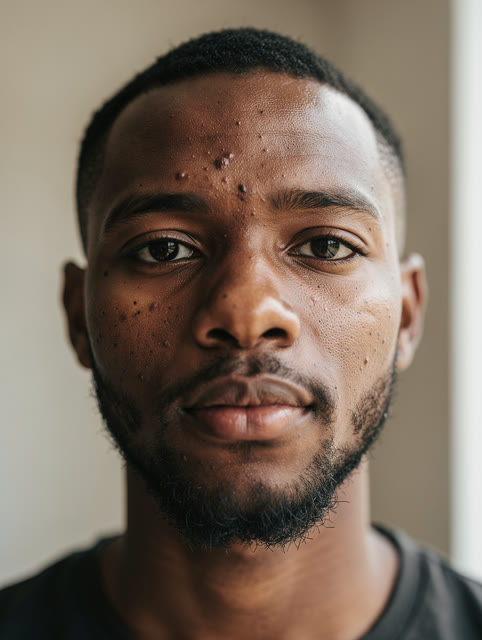
  • Portrait of a young man with a short beard and deep brown skin
    Deep skin tones White balance is read from the background, not the skin.
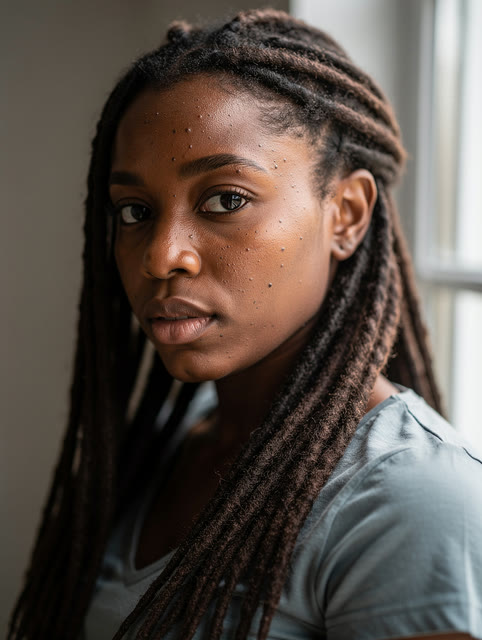
  • Portrait of a young woman with locs
    Locs The skin mask cuts around hair, eyes and the inner mouth.
  • Portrait of a woman in her late twenties in flat overcast light
    Flat overcast light Flat light is what the Auto tool measures and corrects.
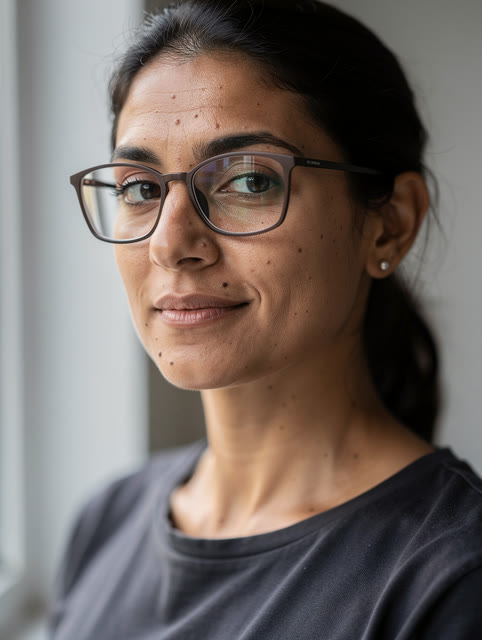
  • Portrait of a woman in her thirties wearing glasses
    Glasses Face detection works through glasses.

Eight synthetic portraits, generated rather than photographed. No real person is depicted.

Offline and on-device

Does it work offline? Editing runs on your iPhone

Face detection, every adjustment and the export happen on the phone, with no connection. These are the measurements behind that, each with the sentence saying where it comes from.

  • 5

    network requests in a complete session

    Launch, sign in, pick a photo, detect the face, edit, export to the camera roll. Recorded 30 August 2026.

  • 1,551

    bytes — the largest thing sent anywhere in that session

    An exported photo from this app is hundreds of thousands of bytes. Nothing that size was sent.

  • 0

    requests carrying image data

    Nothing at or above 64 KB left the device. Two hosts were contacted in total, both of them Google Firebase.

  • 0.35

    the floor under how much skin texture survives

    Smoothing splits the photo into fine detail and tone, smooths the tone, then puts the detail back. At maximum strength it still puts back 35% of it — a floor no setting can go under.

  • 0

    Presets or auto adjustments that can change a shape

    Reshape moves only what your finger drags. A Preset cannot carry a reshape to another photo, and an automated check fails any build in which a Preset or an auto adjustment can change one.

  • 2

    third-party services in the app: one for crashes, one for anonymous usage

    Sentry, added 2 September 2026, reports crashes and is configured never to attach a screenshot or the view hierarchy — the only two settings that could put your photo in a crash report. PostHog counts a fixed list of app actions and is never told who you are. Photo paths, tokens and email addresses are stripped before either sends anything. No advertising identifier, no session recording, and nothing on this page.

One limit worth stating: the recorder watches the app’s own network calls and cannot see traffic from the Apple and Google components it is built on. Neither of those ever receives a photo, but this measurement does not prove it — a full network inspection is still to come. The recording also predates usage analytics, which adds requests to PostHog carrying only the events the privacy policy lists.

What it will not do

A photo editor that does not change your face shape

No one-tap face-shape controls, and no Preset or auto adjustment that can change a shape — Reshape moves only what your own finger drags. No watermark, and no advertising. Each one is enforced in the code rather than promised in a policy.

  • Nothing changes shape unless your own finger moves it.

    No one-tap jaw, chin or nose control. Reshape moves exactly what you drag, a Preset can never carry a reshape to another photo, and an automated check refuses any build in which a Preset or an automatic adjustment can change one.

  • Smoothing keeps at least 35% of the fine-detail layer, even at full strength.

    The floor is fixed in the app rather than left to a slider, so no combination of settings produces plastic skin.

  • Exports carry no watermark, at any price, including during the trial.

    Decided before a line was written, and true on the free trial as well as on every paid plan.

  • Photos leave the phone only when you tap one of the ten AI tools.

    Smoothing, healing, whitening, lighting, colour, grades, face detection and export never touch a server.

  • No advertising identifier, no session recording, and no photo in any report.

    Two third-party services run in the app: Sentry, for crashes, set up so a report can never carry your photo, and PostHog, for anonymous usage counts that never say who you are and that you can switch off. This page itself loads nothing from anyone.

  • Cancel any time, in your App Store settings.

    The free trial on the annual plan charges only if you leave it running: cancel at least 24 hours before it ends and you pay nothing. Every plan cancels the same way, like any other App Store subscription.

Pricing

How much does it cost?

Every plan includes every tool, with no watermark. The annual plan starts with 3 days free; the other plans are charged when you subscribe.

  • Best value Annual $99.99 about $8.33 a month
  • Quarterly $34.99  
  • Monthly $19.99  
  • Weekly $6.99  

On every plan, at every price

  • Smoothing, healing, whitening, lighting, colour, grades, Presets and export — unlimited, on every plan
  • No watermark, at any price, including during the free trial
  • 30 AI edits a month. The free trial includes 5.
  • Cancel any time, in your App Store settings

The annual plan starts with a 3-day free trial: you confirm the subscription with Apple, and $99.99 is charged when the trial ends unless you cancel at least 24 hours before. The other plans are charged when you subscribe. Prices in US dollars. The App Store charges the equivalent in your own currency and shows it before you confirm.

FAQ

Skin smoothing app: common questions

Still have a question?

Anything not answered here — a device, a photo it struggled with, or how the trial works — reaches a person at this address.

Ask a question
Do my photos leave my phone?

Only if you use an AI tool. Smoothing, healing, whitening, lighting, grades, face detection and export all run on your device and never touch a server. The ten AI tools — makeup, hair, clothes, backdrops, object removal — need a model too large to run on a phone, so tapping one sends that photo to our service, which does not store it. Nothing you do not tap is ever sent.

What is a Preset?

The skin, whitening, lighting and colour settings of an edit, saved as one reusable thing. Heals, reshapes and AI edits stay with the photo they were made on. Because a Preset is stored relative to facial landmarks rather than pixel positions, it replays correctly on a different photo, a different angle, a different distance, and a different face.

Are the AI tools unlimited?

No, and they are the only part that is not. A subscription includes 30 AI edits a month; the free trial includes 5, and an account with no subscription gets 3 to try, once. Everything else — smoothing, healing, whitening, lighting, grades, Presets, export — is unlimited on every plan, because it runs on your phone and costs us nothing to run. A subscriber who needs more in a month can add a pack of 20, 40 or 80 AI edits in the app, from $4.99: bought once, used after the month's own, and they do not expire.

Is there a free trial?

Yes, on the annual plan: 3 days free. You confirm the subscription with Apple and pay nothing for 3 days. When the trial ends you are charged $99.99 for the year, unless you cancel at least 24 hours before, in your Apple Account settings. The other plans have no free trial and are charged when you subscribe. The trial includes 5 AI edits.

Is there a web or desktop version?

No. It is an iPhone app, because the retouching runs on the phone itself — that is what keeps your photos with you and lets it work offline.

Is there an Android version?

No. PhotoTune is iPhone only.

Does it work offline?

The retouching does. Skin, lighting, colour, healing and export all work with no connection at all, and Presets are saved on the phone. Signing in and the AI tools need one.

Can it change the shape of my face or body?

Only where you drag it yourself. Reshape moves exactly what is under your finger — a strand of hair, a collar that folded, the line of a sleeve — and Restore brushes any of it back. There are no one-tap face-shape controls, a Preset never carries a reshape to another photo, and none of the automatic adjustments can change a shape.

Are exports watermarked?

No. Exports are clean at every price, including during the trial.

Read more

Skin smoothing, headshots and more photo editing tools

One page per tool: what it does, how to use it on iPhone, and whether it runs on your phone or sends the photo.

Download it for iPhone

Free to download. 3 days free on the annual plan, and no watermark on anything you export.

Made for iPhone. Retouching runs on the phone itself, so it works offline.

A QR code that opens PhotoTune on the App Store
Scan with your iPhone camera