 PhotoTune
 Home / Reusable edits
Save photo edits and apply them to other photos
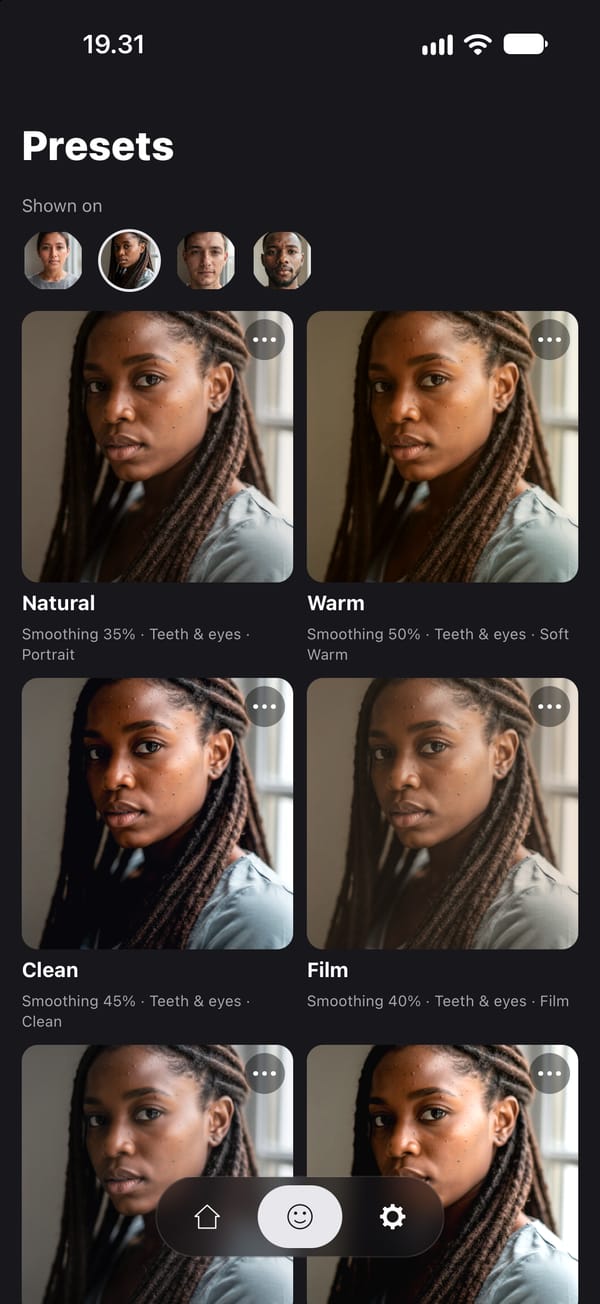
PhotoTune lets you save photo edits on iPhone and apply them to other photos. Finish one edit, save it as a Preset, and the next photo gets the same skin, whitening, lighting and colour in a tap, even from a different angle or of a different person.
Why copying edits between photos is hard on iPhone
Most photo editors are built around one photo. You adjust it, export it, and the next photo starts from nothing, so a set of photos from the same day ends up looking like it was edited on different days.
Copying adjustments helps for colour, but portrait edits do not transfer that way. Skin smoothing and teeth whitening belong to a face, and the face is in a different place in every photo.
What a Preset saves
A Preset in PhotoTune saves the settings of an edit: skin smoothing and texture, teeth and eye whitening, eye colour, exposure and contrast, warmth and vibrance, and the colour grade with its intensity.
It does not save three things, on purpose. Healed spots belong to one photo. Reshape is a manual edit to one photo and is never allowed into a Preset. AI edits are separate requests you make photo by photo.
How a Preset lands on a different photo
The face-dependent settings are stored relative to facial landmarks rather than pixel positions. When you apply a Preset to another photo, the face in that photo is detected on the phone and the settings are placed against it, so a different angle, distance, crop or person still gets the edit in the right place.
A Preset strength slider blends it from none to full, for a photo that needs the same look a little lighter.
Consistent photo editing for sets and series
This is useful anywhere photos are seen side by side: a profile grid, a team page, product shots with a person in them, or a trip where the light changed through the day. Build the edit once, save it, and apply it across the set.
For a whole set at once, choose Apply to photos from the Preset's ⋯ menu, or Batch on the home screen, and pick up to 100 photos. The Preset is applied to each one on the phone and every result is shown before anything is saved, so you can leave out the ones you do not want. The rest are saved to your camera roll as new photos at full size; the originals are not changed.
Presets can be renamed, duplicated to make a variation, or deleted from the ⋯ on each one. They are stored on your phone.
How to save an edit and apply it to other photos on iPhone
- 01
Edit one photo
Set skin, whitening, lighting and colour on a representative photo from the set.
- 02
Save it as a Preset
Open Presets and choose Save current, then give it a name you will recognise.
- 03
Open the next photo
Tap the Preset in the Presets grid. The face is detected and the settings are placed against it.
- 04
Adjust strength and export
Lower Preset strength if this photo needs less, heal any spots, then export with no watermark.
- 05
Or apply it to a whole set at once
Choose Apply to photos from the Preset's ⋯ menu, pick up to 100 photos, leave out any result you do not want, and save the rest.
FAQ
Reusable edits: common questions
Still have a question?
Anything not answered here — a device, a photo it struggled with, or how the trial works — reaches a person at this address.
Ask a questionHow do I copy edits from one photo to another on iPhone?
In PhotoTune, save the finished edit as a Preset, open the next photo and tap the Preset. Skin, whitening, lighting and colour settings are applied to that photo, placed against its face.
Can I apply the same edit to many photos at once?
Yes, up to 100 at a time. Choose Apply to photos from a Preset's ⋯ menu, or Batch on the home screen, and pick the photos. The Preset is applied to each one on the phone and you see every result first: tap one to leave it out, and the rest are saved to your camera roll at full size. A photo with no face gets the Preset's light and colour but not its skin, eye and teeth settings. For a photo that needs less, or a spot to heal, open it on its own instead.
Does a Preset work on a photo of a different person?
Yes. The settings are stored against facial landmarks, so they fit a different face, angle or distance.
What is not saved in a Preset?
Healed spots, Reshape and AI edits. Heals and reshapes belong to one photo, and AI edits are requested per photo.
Do Presets need an internet connection?
No. Saving, applying and editing with Presets run on the phone, and the Presets are stored on it.
Step-by-step guides
Related tools
- Natural retouch
Natural photo retouch for iPhone
A natural photo retouch app for iPhone. Smooth skin, clear blemishes and fix lighting while pores and skin texture stay. Retouching runs on your phone.
- Headshot editor
Headshot editor for iPhone
Edit a headshot on iPhone for LinkedIn, a team page or a profile photo. Even skin, fix lighting and keep it looking like you, then use the same edit on every headshot.
- Teeth whitening
Whiten teeth in photos on iPhone
Whiten teeth in photos on iPhone without the bright white look. A teeth whitening app with sliders for teeth and eye whites, placed by face detection on your phone.
- Brighten photo
Brighten a dark photo on iPhone
Brighten a dark photo on iPhone with Exposure and Contrast, then warm it up or add a colour grade. Works on any photo and runs on your phone.