 PhotoTune
 Home / Makeup editor
Add makeup to a photo on iPhone
Add makeup to a photo on iPhone with PhotoTune’s Makeup tool. Choose an Everyday, Soft, Evening or Bold look and it is applied subtly, keeping your skin texture and face shape. It is an AI tool, so the photo is sent for editing when you tap it, and not stored.
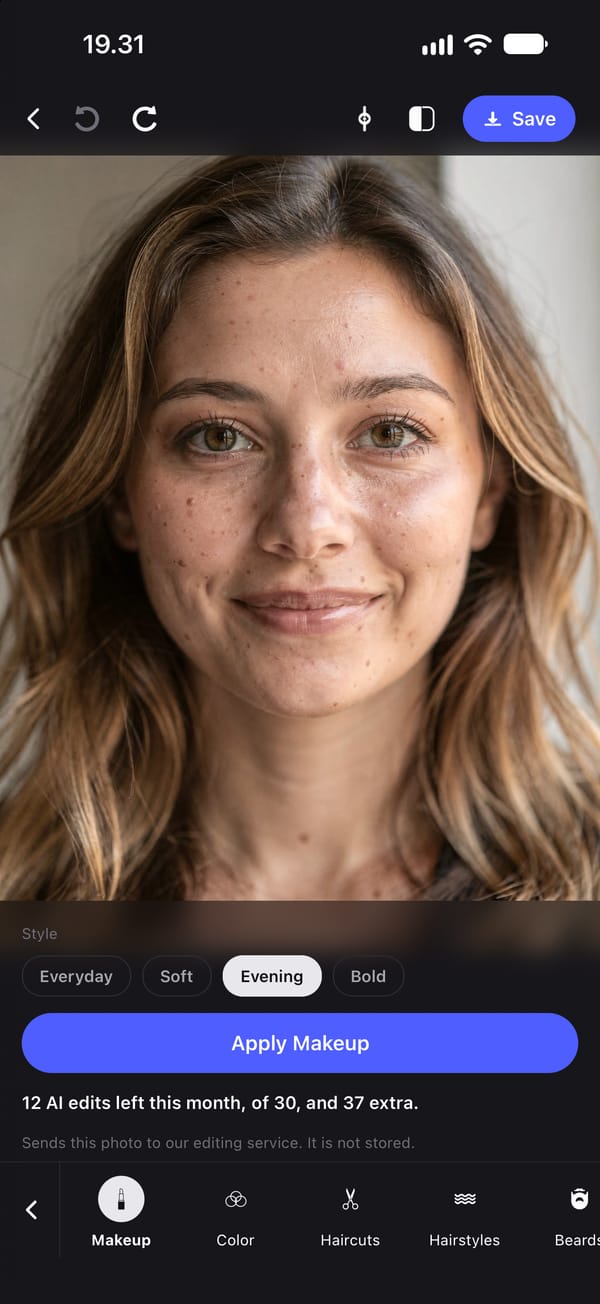
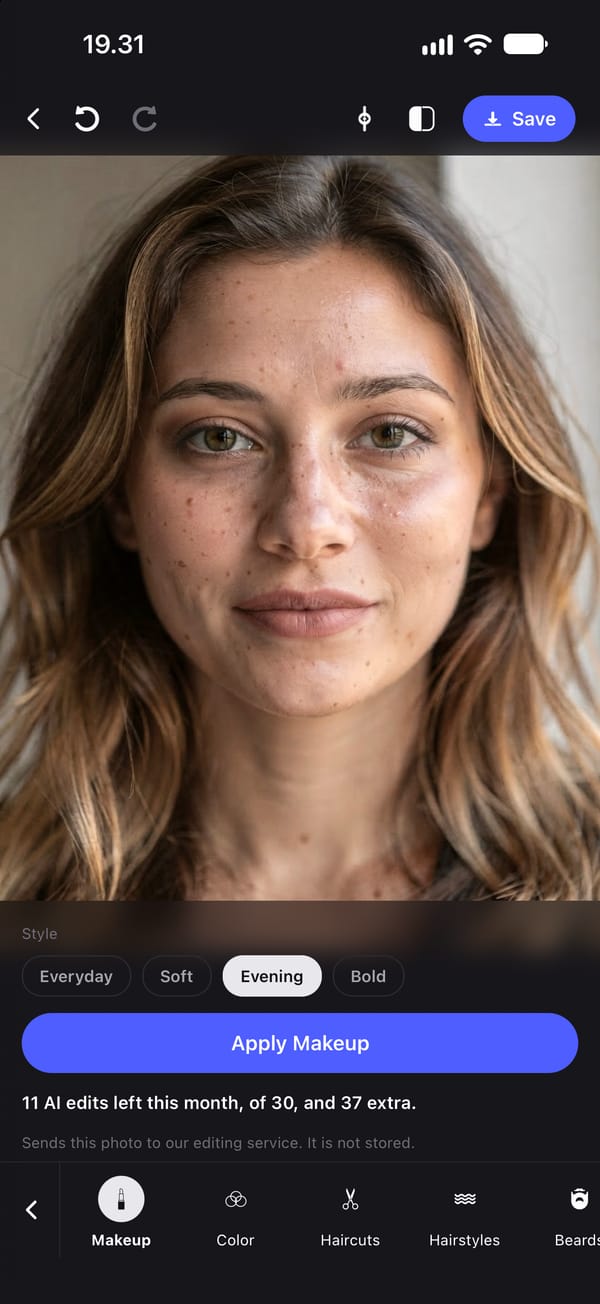
Four makeup looks
Makeup applies one of four looks to the person in the photo: Everyday, Soft, Evening or Bold. Every look is requested as subtle and natural, so even Bold reads as makeup rather than as a filter.
There are no sliders for lipstick shade or eyeliner and no prompt to write. You choose a look and the model applies it.
Makeup without a filter look
Makeup filters usually arrive with smoothing and face reshaping built in, which is why they look like filters. Here each request tells the model to keep the face shape, bone structure and skin texture exactly, with nothing slimmed, reshaped or smoothed, and to change only the makeup.
Generative results can vary, so compare the result, and tap Undo at the top of the editor if more than the makeup changed.
Try makeup on a photo before an event
Use it to see an evening look on your own face before a wedding or a night out, or to add a soft everyday look to a profile photo taken with none. Try one look, undo it, and try another.
Finish the photo on your phone
The on-device tools apply on top of the result: Skin to soften small blotches while keeping texture, Whiten for teeth and eye whites, and Lighting and Filters for the colour. Those run on the iPhone with no connection.
What gets sent, and what it costs
Makeup is an AI tool, so tapping it sends that photo to our editing service, which passes it to Google's Gemini and returns the result. We do not store the photo, and nothing is sent until you tap.
Each look uses one AI edit: subscriptions include 30 a month and the free trial includes 5.
How to add makeup to a photo on iPhone
- 01
Choose a clear photo of your face
Front-facing and well lit works best.
- 02
Open Makeup
You need to be signed in with a subscription or free trial, and online.
- 03
Pick a look and tap
Everyday, Soft, Evening or Bold. The result is returned and the photo is not stored.
- 04
Compare
Tap Undo at the top of the editor to go back and try a different look.
- 05
Finish and export
Adjust skin and lighting on the phone, then export with no watermark.
FAQ
Makeup editor: common questions
Still have a question?
Anything not answered here — a device, a photo it struggled with, or how the trial works — reaches a person at this address.
Ask a questionHow do I add makeup to a photo on iPhone?
Open the photo in PhotoTune, choose Makeup, pick Everyday, Soft, Evening or Bold and tap. The look is applied and your face is kept as it is.
Can I add natural makeup to a photo without a filter look?
Yes. Every look is requested as subtle and natural, and the model is told not to smooth or reshape your face.
Can I pick a lipstick colour?
No. There are four complete looks, and no separate controls for individual products.
Is my photo uploaded when I add makeup?
Yes, for this tool. Makeup is an AI tool, so tapping it sends that photo to our editing service, which does not store it.
Does it work without an internet connection?
No. Makeup needs a connection. The on-device tools, such as Skin, Whiten and Lighting, work offline.
Step-by-step guides
Related tools
- AI hairstyles
AI hairstyle changer: try a new haircut on your photo
Try a new haircut, hairstyle, hair colour, beard or eyebrows on your own photo on iPhone. Twelve haircuts, six colours, and your face kept as it is.
- Natural retouch
Natural photo retouch for iPhone
A natural photo retouch app for iPhone. Smooth skin, clear blemishes and fix lighting while pores and skin texture stay. Retouching runs on your phone.
- Teeth whitening
Whiten teeth in photos on iPhone
Whiten teeth in photos on iPhone without the bright white look. A teeth whitening app with sliders for teeth and eye whites, placed by face detection on your phone.
- AI headshots
AI headshot generator from your own photo
Turn one photo into a professional headshot on iPhone: even studio lighting, a plain background, and your own pose, expression and face kept.