 PhotoTune
 Home / Guides / Change your hairstyle in a photo
How to change your hairstyle in a photo
Short answer
The iPhone's Photos app has no tool for changing a haircut. Two ways that do: add your photo to Google's Gemini, in its app or at gemini.google.com, and describe the cut you want, or use an app with hair tools such as PhotoTune, which offers 12 haircuts, 4 styles and 6 colours and asks for only the hair to change. Either way the result is a preview of an idea, not a promise of how a real haircut will look.
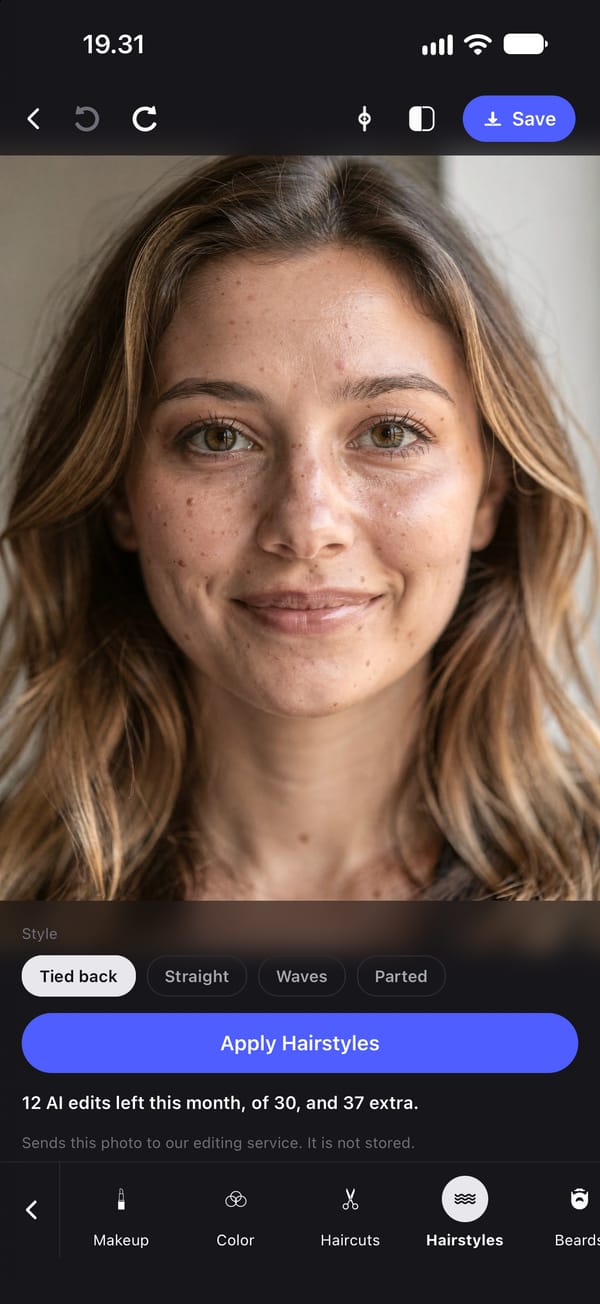
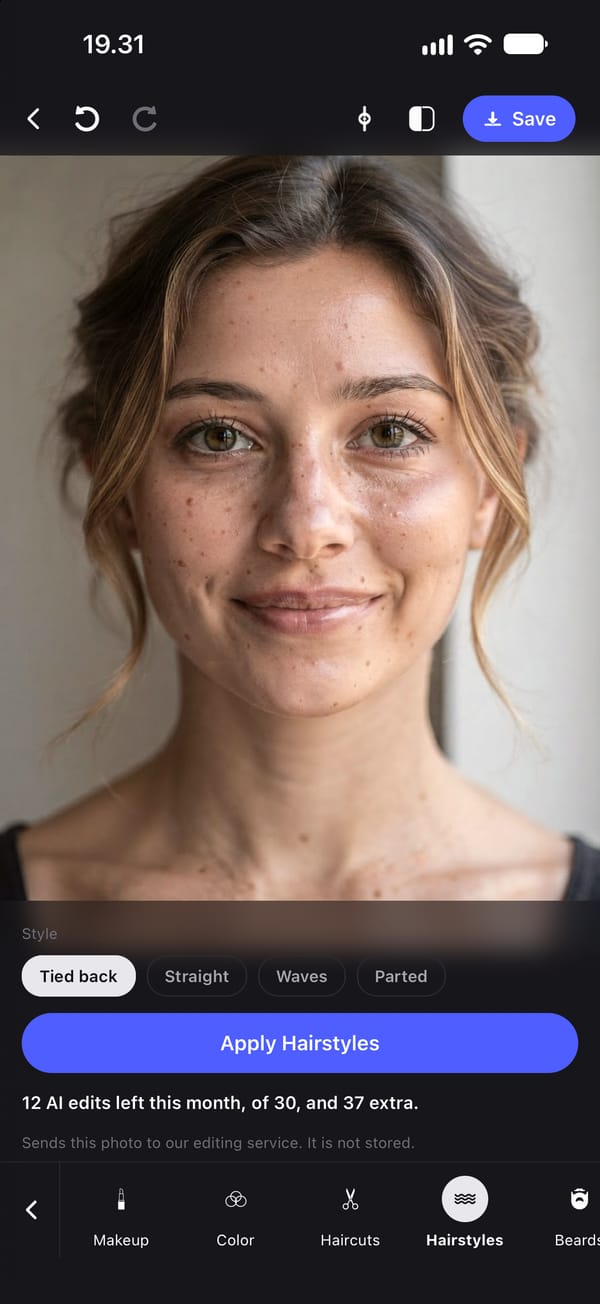
Two ways to change your hairstyle in a photo, compared
| Google Gemini | PhotoTune | |
|---|---|---|
| What you can ask for | Anything you can put into words | 12 haircuts, 4 styles and 6 colours, plus beards and eyebrows |
| What is asked to change | Whatever your request says | Only the hair. Face shape, bone structure and skin texture are asked to stay as they are |
| What you need | A Google account, and to be 18 or over | An iPhone, the app and an account |
| Works without a connection | No | No |
| Where the photo goes | To Google, as part of the chat | To our editing service and on to Google's Gemini. We do not store it |
| Cost | No plan needed. Google applies a daily limit | One AI edit per try, and a subscription to save the photo |
| Use it when | You have a particular cut in mind and want to describe it | You want to try common cuts and colours quickly, then keep editing the photo |
Change your hair in a photo with Google's Gemini
Gemini is Google's AI assistant, and it can edit a photo you add to a chat. Google's own help page names seeing yourself with different hairstyles as one of the things its image model is good for. Because you describe the change in words, you are not limited to a list: a particular cut, a fringe, a length or a colour, or several at once.
Nothing needs installing on an iPhone, because gemini.google.com works in Safari as well as in the app. PhotoTune's hair tools also send the photo to one of Google's Gemini models, so what separates the two is what you can ask for and what happens to the photo afterwards.
What you need: A Google account, and to be 18 or over: Google says editing images is not available to anyone younger. The Gemini app, or gemini.google.com in Safari. Google also says availability depends on the languages and countries each Gemini app supports.
-
Open Gemini and sign in
Open the Gemini app, or go to gemini.google.com in Safari, and sign in with your Google account. Google says you must be signed in to make or edit images.
-
Add your photo to a chat
Google's help says you can upload an image from your device and ask Gemini to edit it. Choose a photo where your face and your hair are both clear and evenly lit.
-
Describe the hair, and what to keep
Type the change in the text box at the bottom, for example: change only my hair to a chin-length bob with a side parting, and keep my face, expression and background the same. Say what should stay as well as what should change.
-
Tap Submit
Gemini answers with a new image in the chat. Tap it to see it larger, and look at it beside your original.
-
Try the next idea
Ask for another cut the same way. Google says its Lite image model, which is used when Gemini is set to Flash-Lite, is not designed for multiple edits, so set Gemini to Flash or Pro for a run of tries.
-
Save the one you like
In the app, touch and hold the image and tap Save. Google says images download at 1K resolution without a Google AI plan, and at 2K with one.
Where it falls short
Editing needs a Google account and you to be 18 or over, and Google applies a daily limit to its image model. The result is a new image made by the model: Google lists keeping a person's look among its features, but compare it with your original before you trust it. A photo you add is part of the chat. Google says that with Keep Activity on, what you share is saved to your activity, some chats are read by human reviewers, and activity can be used to train its AI models. Temporary chats are not used for that training.
Try set haircuts, styles and colours with PhotoTune
PhotoTune keeps its hair tools in the editor's AI group. Haircuts changes the cut, to one of twelve: Shorter, Layered, Long layers, Bob, Curtain bangs, Pixie, Shag, Wolf cut, Fade, Undercut, Textured crop or Buzz. Hairstyles keeps the length and changes how it is worn: Tied back, Straight, Waves or Parted. Color changes only the colour, to Darker, Lighter, Black, Blonde, Auburn or Silver. Beards and Eyebrows sit beside them.
You choose rather than type. Each choice becomes a request our service writes, which asks the model to change only the hair and to keep your face shape, bone structure and skin texture as they are. These are AI tools, so tapping Apply sends that photo to our editing service, which passes it to Google's Gemini and returns the result. We do not store the photo, and nothing is sent until you tap.
What you need: An iPhone, the app, an account and a connection. Each try uses one AI edit, and saving the photo needs a subscription.
-
Choose a clear, front-facing photo
Your face and your current hair should both be in the frame. A hood, a hat or a tight crop hides the hair the tool has to change.
-
Open it and swipe the bottom row to AI
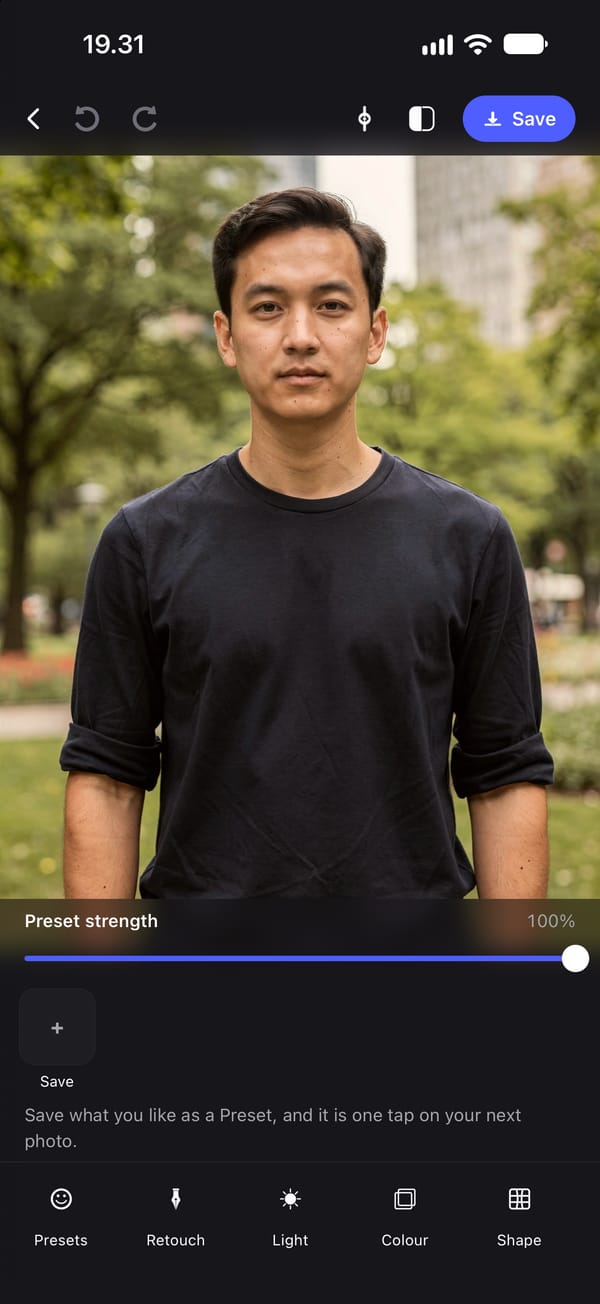
The groups along the bottom of the editor are Presets, Retouch, Light, Colour, Shape, Remove and AI. In AI, the hair tools come after Makeup: Color, Haircuts and Hairstyles, then Beards and Eyebrows.
-
Pick a tool, then a choice
Choosing sends nothing. In Haircuts each cut has an example picture, and the panel says what those are: examples on a sample face, made with a different model, so your photo will look different.
-
Tap Apply
The button names the tool, Apply Haircuts for example. The line under it shows the AI edits you have left, and the line under that says the photo is sent to our editing service and not stored. The result replaces the photo on screen.
-
Compare with Undo and Redo
Undo, the curved arrow at the top of the editor, brings back your own hair, and Redo brings the new one back. Use those rather than the split divider: an AI result replaces the photo being edited, so the divider would compare the new hair with itself.
-
Try another, or carry on editing
Undo, choose again and tap Apply. Each try uses one AI edit. Edits you had already made, such as smoothing or a colour grade, carry on applying to the new photo.
-
Save
Save writes a new photo to your camera roll and leaves the one you opened as it was. Take it to your hairdresser with a photo of your hair as it is now.
Where it falls short
You pick from a list. There is no box to describe a style of your own, and no option made for adding hair. Results are generated, so they vary, and the model can get a cut wrong or change more than the hair, which is why comparing matters. Each try uses one AI edit, and so does a photo the model declines to edit. Only a copy of the photo at most 2,048 pixels on its long side is sent, and the result comes back at the size the model makes it, so a photo with new hair can be smaller than the one you started with. It needs a connection.
A preview, not a promise
An AI haircut is a picture of what a model expects that cut to look like on someone with your face, made from one photo. It cannot see the back of your head. It does not know how thick your hair is, which way it grows, or what it does a week after a cut. Ask for a length or a texture you do not have, and it will draw one anyway.
So use the picture to decide what you like and to show what you mean, not to predict the result. Take it to a hairdresser with a photo of your hair as it is today, and ask whether that cut will work with your hair. Whether a shape suits your face is easier to judge on your own photo than on a chart of face shapes, and that is the part a preview is good for.
Adding hair, or more of it
Some people searching for this want hair where a photo shows little: more length, a fuller fringe, a beard. That is where a preview is most a guess, because nothing in the photo shows how that hair would grow, so the model invents all of it.
PhotoTune has no option called add hair. The longest cuts, Long layers and Curtain bangs, ask for long hair, and Beards goes from Clean through Stubble and Short to Full. In Gemini you can ask for it in words. Either way, judge the result as a sketch.
Choosing a hair colour to buy
If the question is which dye to buy, a brand's own try-on can be the better tool. L'Oréal Paris's hair colour virtual try-on, built with ModiFace, works live through the camera or on a selfie, lets you browse more than 200 of its shades, and has a compare view for a before and after. Its page says it detects your current hair colour to calibrate the shades to you, that live and selfie images are never stored, and that a patch test 48 hours before colouring is always advised.
It shows colour only, and only that brand's shades. PhotoTune's Color has six choices, from Darker to Silver, and Gemini will try any colour you can describe.
Getting PhotoTune
PhotoTune is an iPhone app; there is no Android or web version. Saving an edited photo needs a subscription, and the annual plan starts with 3 days free. The pricing page has every plan and what the trial turns into.
Sources
What this guide says about software other than PhotoTune comes from the pages below, read on the dates shown. The PhotoTune screenshots are captures of the app.
- Google: Generate & edit images with Gemini Apps (iPhone & iPad) checked
- Google: Gemini Apps Privacy Hub checked
- Apple: Edit photos and videos on iPhone (iOS 27) checked
- Apple: Create original images with Image Playground on iPhone (iOS 27) checked
- L'Oréal Paris Canada: Hair colour virtual try-on checked
FAQ
Change your hairstyle in a photo: common questions
Still have a question?
Anything not answered here — a device, a photo it struggled with, or how the trial works — reaches a person at this address.
Ask a questionCan I change my hairstyle in a photo on iPhone without an app?
Not in the Photos app. Its editing tools adjust light and colour, apply styles and filters, crop, and on iPhones with Apple Intelligence clean up, extend or reframe a photo. None of them is for changing a haircut or hair colour. Without installing anything, gemini.google.com in Safari can edit a photo you add to a chat, if you are 18 or over and signed in to a Google account.
Can Image Playground change my hairstyle?
Apple describes Image Playground as a way to create new, original images from a description, photos and people in your Photos library, and to edit the images in its own gallery. Its guide does not describe changing the hair in a photo you took, and we have not tested it for that.
Can AI add hair to a photo?
It can draw it. A longer cut, a fuller fringe or a beard can be asked for, but nothing in the photo shows how that hair would grow, so the result is a guess. PhotoTune has no option made for adding hair; its longest cuts and its Beards tool come closest.
How many hairstyles can I try in PhotoTune?
Each try uses one AI edit. A subscription includes 30 AI edits a month, the free trial includes 5, and an account with no subscription gets 3 to try, once. A subscriber who needs more can add a pack of AI edits in the app.
Does PhotoTune store my photo when I try a hairstyle?
No. Tapping Apply sends that photo to our editing service, which passes it to Google's Gemini and returns the result, and our service keeps no copy. It keeps a record that an AI edit was made, when and with which tool, never the photo or the result.
The tools in this guide
- AI hairstyles
AI hairstyle changer: try a new haircut on your photo
Try a new haircut, hairstyle, hair colour, beard or eyebrows on your own photo on iPhone. Twelve haircuts, six colours, and your face kept as it is.
- Makeup editor
Add makeup to a photo on iPhone
Add makeup to a photo on iPhone in four looks: Everyday, Soft, Evening or Bold. Subtle, natural results that keep your skin texture and face shape.
- AI headshots
AI headshot generator from your own photo
Turn one photo into a professional headshot on iPhone: even studio lighting, a plain background, and your own pose, expression and face kept.