 PhotoTune
 Home / Background changer
Change a photo background on iPhone
Change a photo background on iPhone with PhotoTune’s Backdrop tool. Pick a plain studio wall, a softly blurred office, a white wall or a warm outdoor scene, and the background is replaced while the person stays as they are. It is an AI tool, so the photo is sent for editing when you tap it, and not stored.
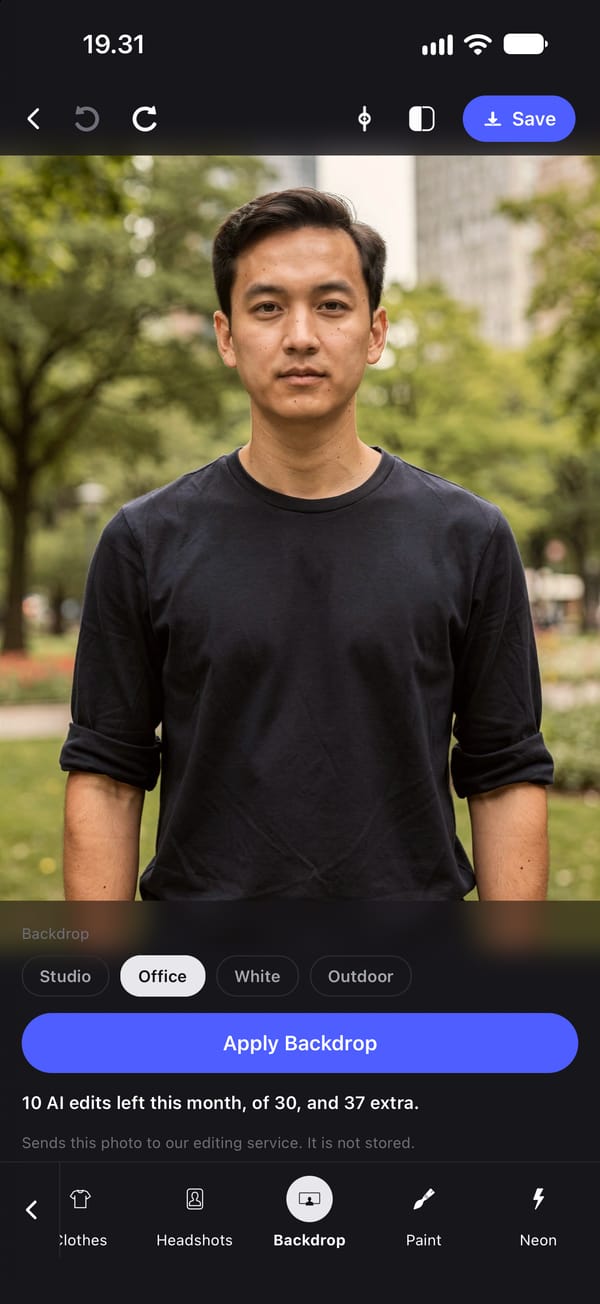

Four backgrounds for portraits
Backdrop replaces the background of a photo with one of four scenes: Studio, a plain neutral studio wall; Office, a softly blurred office; White, a plain white wall; and Outdoor, a warm blurred outdoor scene.
They are chosen for the photos people actually need new backgrounds for: profile pictures, work headshots, CV and application photos, and portraits taken somewhere messy.
How to put a white background on a photo
Choose White for a clean, plain background. It suits a profile photo, a team page and many application photos. Official ID and passport photos have their own strict rules on size, lighting and edits, so check those before using any edited photo for one.
A professional background for a headshot
Studio and Office are the two for work photos. Studio gives the plain wall of a photographer's backdrop; Office gives the softly blurred workplace look of a corporate portrait. For studio lighting on the face as well, use the Headshots tool, which relights the photo and puts it on a plain background in one step.
The person stays the same
Each request asks the model to replace only the background and to keep the person exactly as they are: face shape, body proportions and skin texture, with nothing smoothed or reshaped. Generative results can vary, so compare the result, and tap Undo at the top of the editor to go back if it changed more than the background.
What gets sent, and what it costs
Backdrop is an AI tool, so tapping it sends that photo to our editing service, which passes it to Google's Gemini and returns the result. We do not store the photo, and nothing is sent until you tap.
The edit is made on a copy of the photo up to 2048 pixels on its long side. Each background change uses one AI edit: subscriptions include 30 a month and the free trial includes 5.
How to change the background of a photo on iPhone
- 01
Open the photo and choose Backdrop
You need to be signed in with a subscription or free trial, and online.
- 02
Pick a background
Studio, Office, White or Outdoor.
- 03
Tap to apply it
The photo is sent, the background replaced, and the result returned. It is not stored.
- 04
Check the edges
Look at hair and shoulders. Tap Undo at the top of the editor to try again if they are not right.
- 05
Finish on the phone
Adjust lighting and skin with the on-device tools, then export with no watermark.
FAQ
Background changer: common questions
Still have a question?
Anything not answered here — a device, a photo it struggled with, or how the trial works — reaches a person at this address.
Ask a questionHow do I change the background of a photo on iPhone?
In PhotoTune, open Backdrop, choose Studio, Office, White or Outdoor, and tap to apply it. The background is replaced and the person is kept as they are.
How do I make a photo background white?
Choose the White backdrop, which replaces the background with a plain white wall.
Can I use it for a passport photo?
Check your country's rules first. Official ID photos have strict requirements on lighting, size and editing that an edited photo may not meet.
Does changing the background upload my photo?
Yes, for this tool. Backdrop is an AI tool, so tapping it sends that photo to our editing service, which does not store it.
Can I choose my own background image?
No. There are four built-in backgrounds, and you cannot upload your own or type a prompt.
Related tools
- AI headshots
AI headshot generator from your own photo
Turn one photo into a professional headshot on iPhone: even studio lighting, a plain background, and your own pose, expression and face kept.
- Headshot editor
Headshot editor for iPhone
Edit a headshot on iPhone for LinkedIn, a team page or a profile photo. Even skin, fix lighting and keep it looking like you, then use the same edit on every headshot.
- Remove objects
Remove objects from a photo on iPhone
Remove objects, people in the background or text from a photo on iPhone. Paint over what to remove, or let the AI find background clutter, people or signs.
- Brighten photo
Brighten a dark photo on iPhone
Brighten a dark photo on iPhone with Exposure and Contrast, then warm it up or add a colour grade. Works on any photo and runs on your phone.