 PhotoTune
 Home / Pimple remover
Pimple remover for iPhone photos
Remove pimples from photos on iPhone by tapping them. PhotoTune’s Heal tool covers each pimple with clean skin copied from right beside it, so the skin keeps its texture and the photo does not look edited. It runs on your phone.
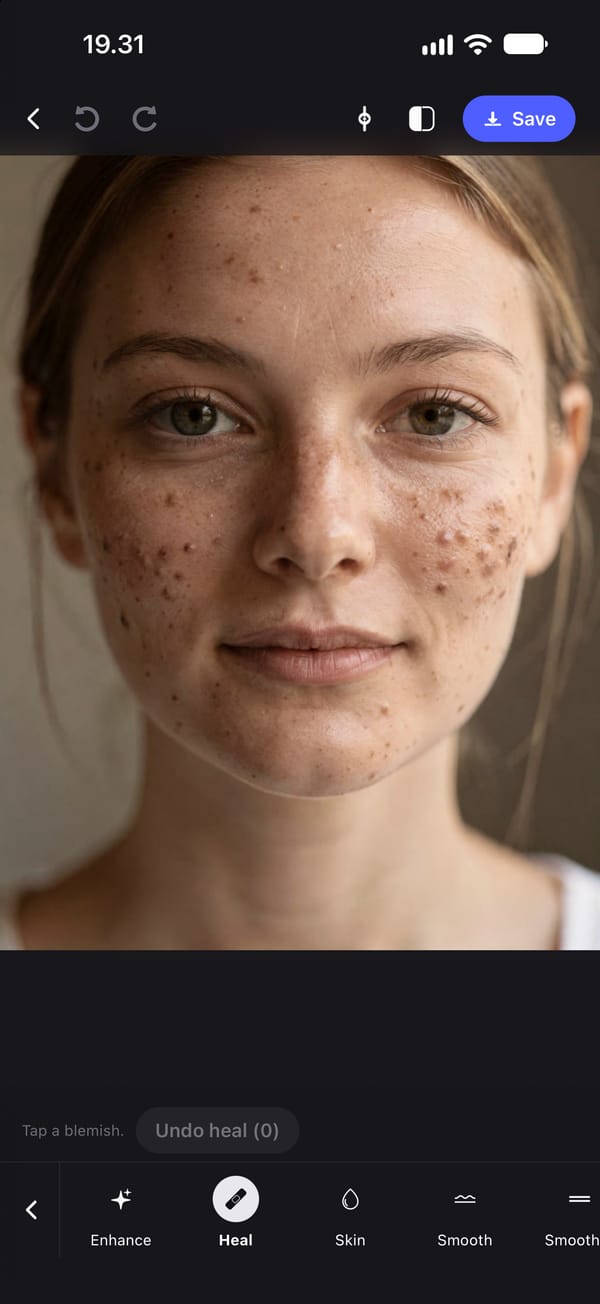
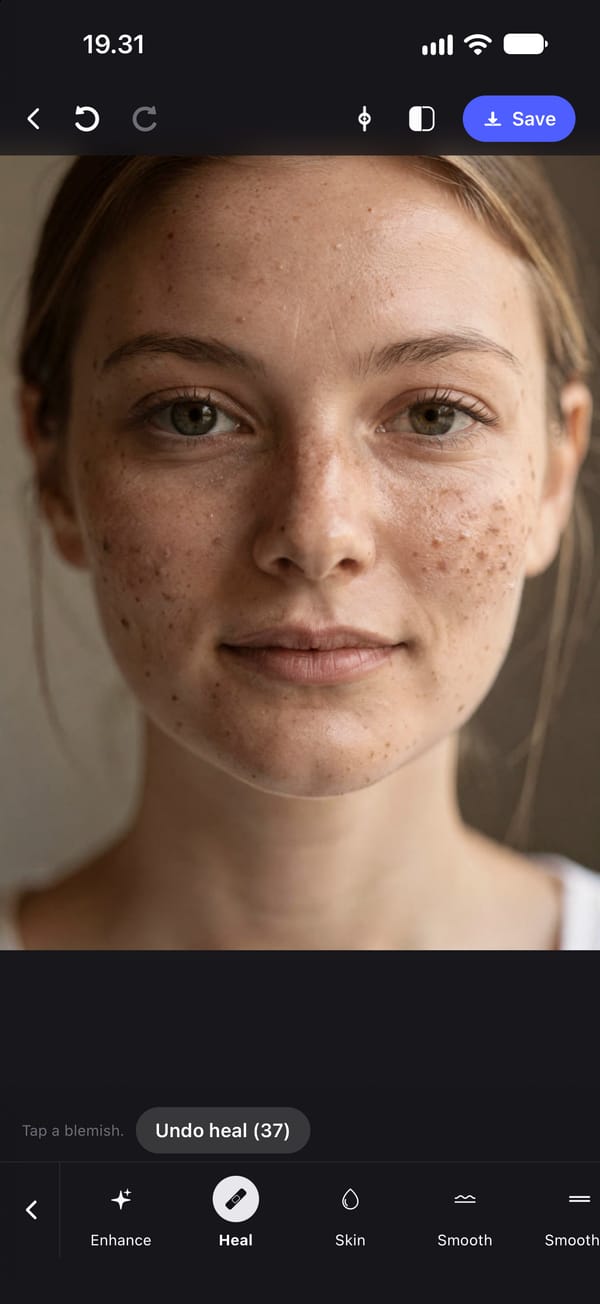
Remove a pimple from a photo in one tap
Open the photo, choose Heal and tap the pimple. PhotoTune covers it with clean skin copied from right beside it, so the patch takes on the colour, the pores and the grain of the skin around it rather than leaving a soft, blurred circle where the pimple was.
You do not choose a brush size. It is set from the size of the face in the photo, so one tap covers a typical pimple without spilling onto the cheek around it. For a very small spot, zoom in first so the tap lands on it.
A photo pimple remover that leaves the rest of your skin alone
The usual way to hide a pimple is to smooth the whole face until it disappears, and the whole face pays for it: pores go, freckles go, and the photo starts to look like a filter. Heal changes only the spot you tapped. The skin between two pimples is exactly as it was in the original.
That is also why the result holds up when somebody opens the photo full size. There is no edge of a smoothing mask to find, and no patch of skin that is suddenly smoother than the rest.
Several pimples, or a whole breakout
Tap each one. Every tap is its own heal, and the counter on the Undo heal button tells you how many you have made. Thirty or forty taps on a close portrait is normal.
If small red blotches are left around the spots once they are gone, a low setting of Skin softens them while putting fine detail back, and it never removes more than 65% of that detail, so the skin does not go waxy. It does not change the colour of a wider red patch.
When a pimple remover is the wrong tool
Heal copies skin from beside the spot. That works for anything small, and it stops working for a large area: covering a big patch copies the same nearby skin over and over, and the repeat starts to show. For uneven skin across the whole face, smoothing is the better tool, and the natural retouch page explains how to keep texture while you do it.
Heals belong to one photo only. They are not saved into a Preset, because a pimple in one photo is not in the same place in the next.
Pimple removal runs on your phone
Healing runs on the iPhone with no connection, and the photo is not sent anywhere. The saved photo is a JPEG at the original's own resolution, with no watermark.
How to remove a pimple from a photo on iPhone
- 01
Open the photo in PhotoTune
Pick it from your camera roll, then choose Heal from the Retouch tools.
- 02
Zoom in on the pimple
A closer view lets the tap land on the spot itself and not beside it.
- 03
Tap the pimple
Clean skin from right beside it covers the pimple. If the patch is not right, Undo heal takes back that one tap.
- 04
Tap the rest
Heal each pimple with its own tap. Hold the photo at any point to compare with the original.
- 05
Save the photo
Save it to your camera roll, at full resolution and with no watermark.
FAQ
Pimple remover: common questions
Still have a question?
Anything not answered here — a device, a photo it struggled with, or how the trial works — reaches a person at this address.
Ask a questionCan I remove a pimple from a photo without an app?
On an iPhone with Apple Intelligence, the Photos app's Clean Up tool can remove a spot. On other iPhones, Photos has no tool for it. The step-by-step guide below covers both ways.
Will a pimple remover make my skin look blurry?
Not this one. Heal changes only the spot you tap and copies real skin texture from beside it. The rest of the face is left exactly as it was.
Can I undo one pimple without losing the others?
Yes. Every heal is kept separately, so Undo heal steps back one tap at a time and leaves the others in place.
Is the pimple remover free?
Heal can be tried for free once you sign in. Saving the edited photo needs a subscription; the pricing page lists the plans and the free trial.
Does removing pimples send my photo to a server?
No. Healing runs on the phone and needs no connection.
Step-by-step guides
Related tools
- Blemish remover
Remove blemishes from photos on iPhone
Get rid of blemishes on photos with a tap. A photo blemish remover for iPhone: Heal copies clean skin from beside each spot, so texture stays. Runs on your phone.
- Natural retouch
Natural photo retouch for iPhone
A natural photo retouch app for iPhone. Smooth skin, clear blemishes and fix lighting while pores and skin texture stay. Retouching runs on your phone.
- Teeth whitening
Whiten teeth in photos on iPhone
Whiten teeth in photos on iPhone without the bright white look. A teeth whitening app with sliders for teeth and eye whites, placed by face detection on your phone.
- Headshot editor
Headshot editor for iPhone
Edit a headshot on iPhone for LinkedIn, a team page or a profile photo. Even skin, fix lighting and keep it looking like you, then use the same edit on every headshot.