 PhotoTune
 Home / Natural retouch
Natural photo retouch for iPhone
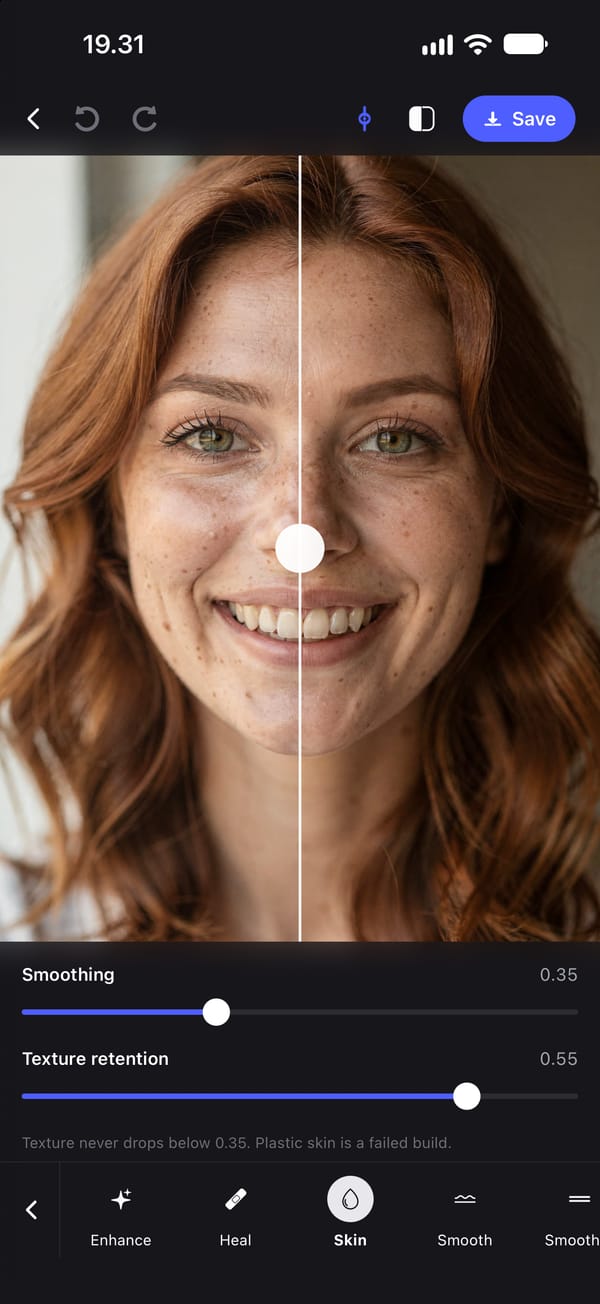
PhotoTune is a natural photo retouch app for iPhone. It smooths skin tone, clears blemishes and fixes lighting while keeping pores, freckles and fine lines, so the photo still looks like a photograph of you. It does not reshape faces automatically, and the retouching runs on your phone.
Why retouched photos look fake
Most retouch apps smooth skin by blurring it. A blur cannot tell a blemish from a pore, so it removes both, and the face that comes out has the even, waxy surface people recognise as edited from across a room.
The other giveaway is shape. Many editors pair smoothing with automatic face slimming, eye enlarging or jaw adjustments, so a light touch-up quietly changes what the person looks like. Friends notice that before they notice the skin.
How to retouch a photo and keep skin texture
PhotoTune splits the skin into two layers before it smooths anything: a blurred layer, sized to the face, that holds its colour, and fine detail, which is pores, fine lines, hair and small blotches. It keeps the colour layer and puts back only part of the detail. Small blotches and fine redness soften; the colour of a wider area stays as it was.
How much detail comes back is set by the Texture control, and it has a floor. Even at full smoothing, at least 35% of the fine detail is returned, and that limit is enforced in the code rather than left to a slider you might push too far. The Smooth tool keeps texture at the top of its range and Smoother takes it to the floor, so there are two quick starting points before you touch a slider.
Touch up blemishes, teeth and lighting
Skin is one part of a retouch. Heal removes a spot when you tap it, by copying clean skin from right next to it, so the patch keeps the texture around it. Whiten lifts teeth and the whites of the eyes, with the eye whitening capped so eyes cannot turn an unnatural white. Lighting has Exposure and Contrast, and Filters adds one of nineteen colour grades with its own intensity.
Hold the photo to see the original, or drag the before-and-after divider across the face to compare one part at a time.
A face editor with no automatic reshaping
There are no one-tap face-shape controls: no jaw, chin, nose or cheek slider, and no automatic adjustment that can change a shape. The one tool that moves anything is Reshape, a manual brush that moves only what your finger drags, and a Preset never carries it to another photo.
That is deliberate. Retouching skin and redrawing a face are different edits, and a natural retouch is the first one without the second.
Retouching runs on your phone
Face detection, smoothing, healing, whitening, lighting, colour and export all run on the iPhone. None of them needs a connection, and none of them sends the photo anywhere. Exports are JPEG at the photo's own resolution, with no watermark and with location data removed.
How to retouch a photo naturally on iPhone
- 01
Open a portrait
Pick a photo from your camera roll. The face is detected on the phone, which the skin and whitening tools need; lighting and colour work on any photo.
- 02
Smooth the skin with Skin
Raise Smoothing until small blotches soften, then set Texture to decide how much fine detail returns. It cannot go below the 35% floor.
- 03
Heal the spots that remain
Turn on Heal and tap each blemish. Every tap can be undone on its own.
- 04
Adjust teeth, eyes and lighting
Use Whiten for teeth and eye whites, then Lighting for exposure and contrast. Hold the photo to compare with the original.
- 05
Export, and save it as a Preset
Export to the camera roll with no watermark. Save the settings as a Preset to use the same retouch on the next photo.
FAQ
Natural retouch: common questions
Still have a question?
Anything not answered here — a device, a photo it struggled with, or how the trial works — reaches a person at this address.
Ask a questionWhat is the best app for natural photo retouching?
Look for one that keeps skin texture when it smooths and does not change face shape on its own. PhotoTune does both: smoothing always returns at least 35% of fine skin detail, and no automatic control can change a shape. It is iPhone only, on the App Store.
How do I retouch a photo without it looking edited?
Smooth tone rather than blurring detail, heal individual spots instead of smoothing the whole face harder, keep eye whitening subtle, and leave face shape alone. Compare against the original as you go.
Does natural retouching need an internet connection?
Not in PhotoTune. Skin, healing, whitening, lighting, colour and export all run on the phone with no connection. Only signing in and the separate AI tools need one.
Can I retouch skin without smoothing away freckles and pores?
Yes. Freckles and pores sit in the fine-detail layer, which is put back after the tone is smoothed. Lower smoothing and a higher Texture setting keep more of them.
Does it add a watermark?
No. Exports are clean at every price, including during the trial.
Step-by-step guides
Related tools
- Blemish remover
Remove blemishes from photos on iPhone
Get rid of blemishes on photos with a tap. A photo blemish remover for iPhone: Heal copies clean skin from beside each spot, so texture stays. Runs on your phone.
- Teeth whitening
Whiten teeth in photos on iPhone
Whiten teeth in photos on iPhone without the bright white look. A teeth whitening app with sliders for teeth and eye whites, placed by face detection on your phone.
- Reusable edits
Save photo edits and apply them to other photos
Save photo edits as a Preset on iPhone and apply them to other photos in a tap, or to up to 100 at once. Skin, whitening, lighting and colour, reused across faces.
- Brighten photo
Brighten a dark photo on iPhone
Brighten a dark photo on iPhone with Exposure and Contrast, then warm it up or add a colour grade. Works on any photo and runs on your phone.