 PhotoTune
 Home / Reshape photo
Reshape a photo on iPhone, by hand
Reshape a photo on iPhone with a brush you control. PhotoTune’s Reshape tool has four modes — Reshape, Refine, Resize and Restore — for moving a collar, a sleeve, a strand of hair or the line of a jacket, on a portrait or a full-length photo. Nothing changes shape unless you drag it.
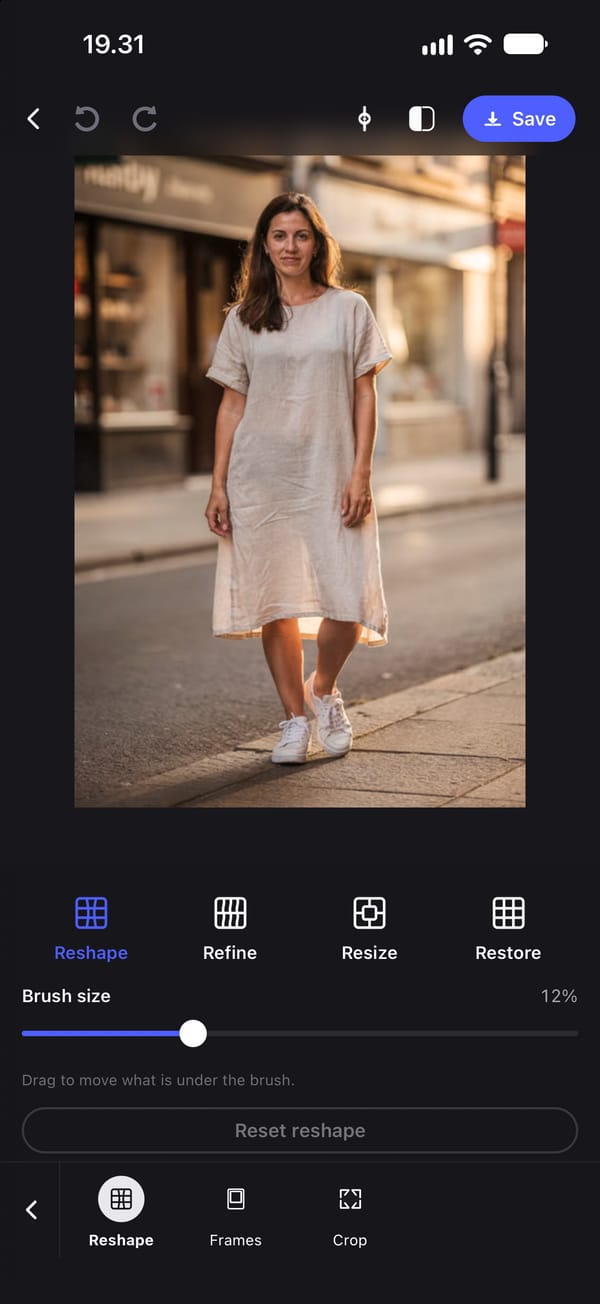
Four reshape brushes
Reshape: drag to move what is under the brush. Use it for a collar that folded, a sleeve that bunched, the line of a jacket or a strand of hair.
Refine: the same push, gentler, for edges and small details where a full push would be too much.
Resize: hold on an area to enlarge or shrink it, with an Enlarge and Shrink switch.
Restore: brush over any part of the photo to put it back exactly as it was.
Reshape face and body in any photo
Reshape works on a close portrait, a half-body shot or a full-length photo, and it does not need a face to be detected. Brush size runs from 4% to 30% of the photo's shorter side, so a small brush handles an ear or an eyebrow and a large one moves the outline of a coat.
Every stroke can be undone on its own, and Reset reshape clears all of them.
Nothing changes shape unless you move it
There are no one-tap face-shape controls in PhotoTune: no jaw slider, no nose slider, no automatic slimming. Reshape is the only tool that can move anything, and it moves exactly what your finger drags.
A Preset never carries a reshape to another photo, and none of the automatic adjustments can change a shape. An automated check fails any build of the app in which a Preset or an auto adjustment could.
How to reshape without warping the background
A reshape moves everything under the brush, including the background behind an edge. Plain backgrounds hide that; straight lines such as door frames, tiles or horizons show it.
Use a brush only a little larger than the thing you are moving, push in short strokes rather than one long drag, switch to Refine near straight lines, and brush Restore over any background that bent.
Reshaping runs on your phone
Reshape runs on the iPhone with no connection, and the photo is not sent anywhere. Exports are JPEG at the photo's own resolution, with no watermark.
How to reshape part of a photo on iPhone
- 01
Open the photo and choose Reshape
Any photo works, portrait or full body.
- 02
Set the brush size
Make it slightly larger than the area you want to move.
- 03
Drag in short strokes
Use Reshape to move, Refine for small details, or Resize to enlarge or shrink an area.
- 04
Restore anything that bent
Brush Restore over the background or any area that moved too far.
- 05
Export
Save the photo to your camera roll. The reshape stays with this photo only.
FAQ
Reshape photo: common questions
Still have a question?
Anything not answered here — a device, a photo it struggled with, or how the trial works — reaches a person at this address.
Ask a questionHow do I reshape part of a photo on iPhone?
In PhotoTune, open Reshape and drag over the area you want to move. Resize enlarges or shrinks an area, Refine makes gentler changes, and Restore puts any area back.
Does the app slim faces or bodies automatically?
No. There are no one-tap face or body shape controls. Only the manual Reshape brush changes a shape, and only where you drag it.
Can a Preset apply a reshape to other photos?
No. Reshape is never saved into a Preset, so it cannot be carried to another photo.
How do I stop the background bending when I reshape?
Use a smaller brush and short strokes, switch to Refine near straight lines, and brush Restore over any background that moved.
Does Reshape need a face in the photo?
No. It works on any photo, including full-length and half-body shots.
Related tools
- Natural retouch
Natural photo retouch for iPhone
A natural photo retouch app for iPhone. Smooth skin, clear blemishes and fix lighting while pores and skin texture stay. Retouching runs on your phone.
- Remove objects
Remove objects from a photo on iPhone
Remove objects, people in the background or text from a photo on iPhone. Paint over what to remove, or let the AI find background clutter, people or signs.
- Blemish remover
Remove blemishes from photos on iPhone
Get rid of blemishes on photos with a tap. A photo blemish remover for iPhone: Heal copies clean skin from beside each spot, so texture stays. Runs on your phone.
- Headshot editor
Headshot editor for iPhone
Edit a headshot on iPhone for LinkedIn, a team page or a profile photo. Even skin, fix lighting and keep it looking like you, then use the same edit on every headshot.