 PhotoTune
 Home / Remove objects
Remove objects from a photo on iPhone
Remove objects from a photo on iPhone with PhotoTune’s Vanish tool. Paint over a bin, a bag or a cable and it is filled to match the scene, or let it remove the people or the text in the background for you. It is an AI tool, so the photo is sent for editing when you tap it, and not stored.
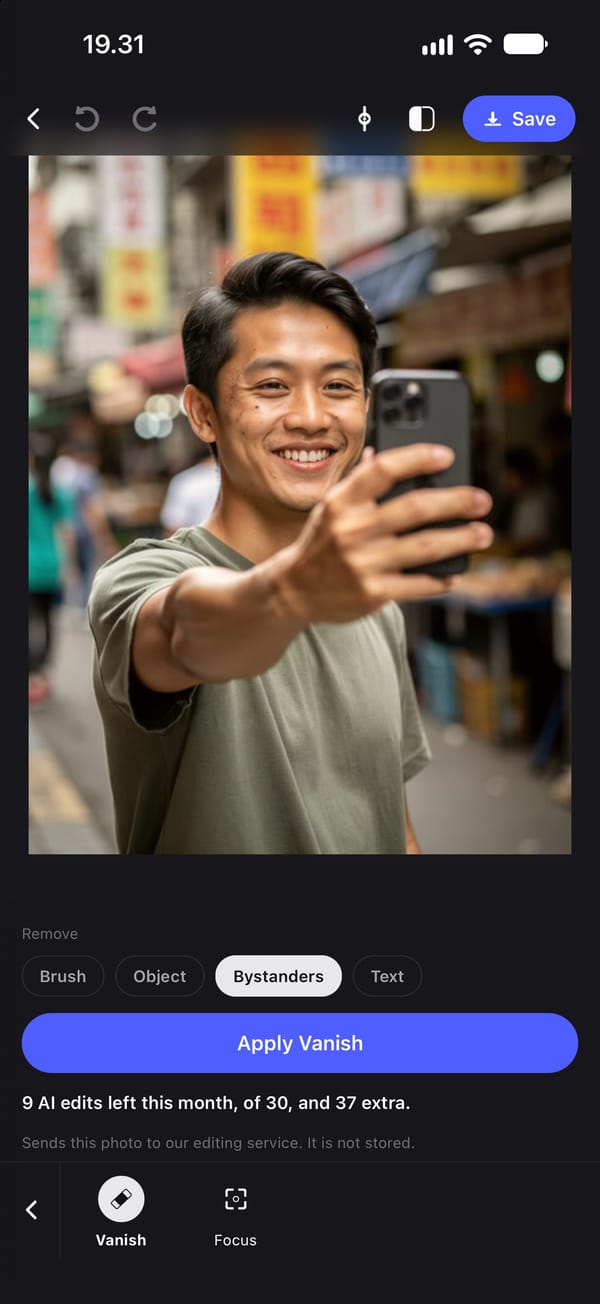
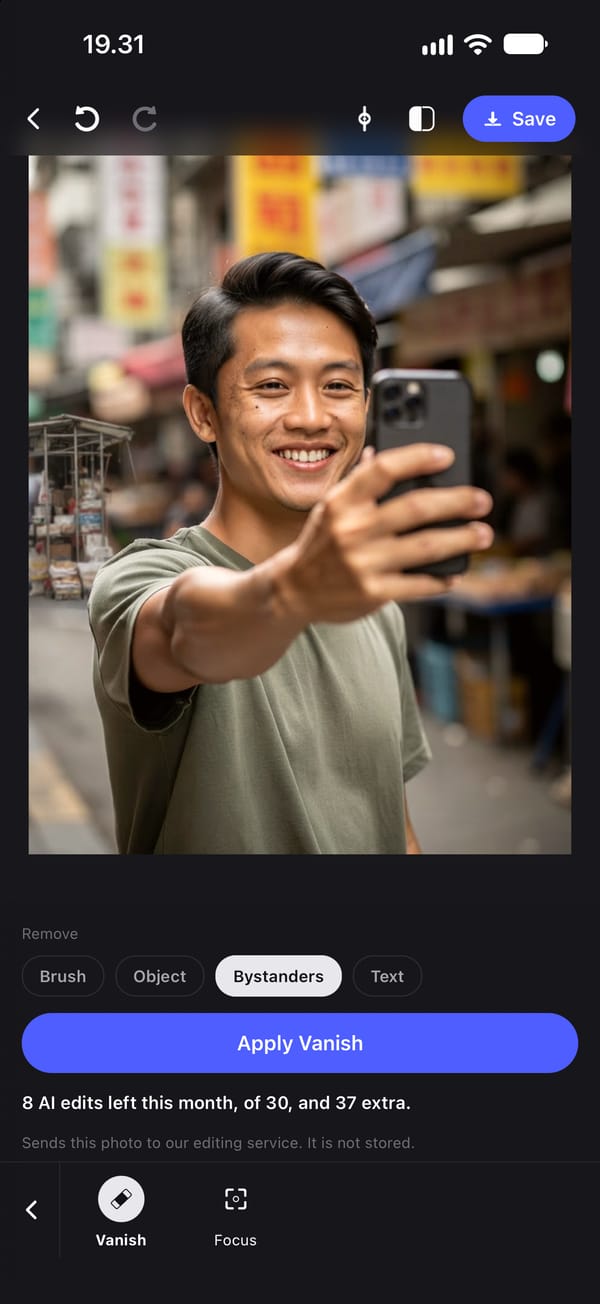
Four ways to remove something from a photo
Vanish is PhotoTune's object remover, and it has four modes.
Brush, the default: paint over the thing you want gone, in small, medium or large strokes. The paint tells the model exactly what to remove, which is more reliable than letting it guess on a busy photo. Undo stroke and Clear fix a mark before you send it.
Object: removes the distracting object from the background without painting. Bystanders: removes the people in the background. Text: removes text or a sign from the background.
How to remove people from the background of a photo
Use the Bystanders mode for strangers behind you in a travel photo or a crowded street. It asks for the people in the background to be removed and the space filled to match the scene.
If it takes the wrong person, or misses one, tap Undo at the top of the editor and switch to Brush to mark exactly who should go.
Remove text, signs and clutter
Text mode is for a shop sign, a slogan on a wall or a street name in the background. Object mode is for a bin, a cable or a bag in the corner of the frame. For anything in front of the subject, paint it with Brush instead, because the automatic modes are aimed at the background.
What gets sent, and what it costs
Object removal is an AI tool. It needs a generative model far too large to run on a phone, so when you tap it, that photo is sent to our editing service, which passes it to Google's Gemini and returns the result. We do not store the photo. Nothing is sent until you tap.
The edit is made on a copy of the photo up to 2048 pixels on its long side, so the result is not at your camera's full resolution. Each removal uses one AI edit: subscriptions include 30 a month and the free trial includes 5. An edit the service declines still counts.
Clean up the rest of the photo on your phone
After the object is gone, the on-device tools still apply on top: Heal for small spots, Lighting and colour, and skin retouching. Those run on the iPhone, without a connection.
How to remove an object from a photo on iPhone
- 01
Open the photo and choose Vanish
You need to be signed in with a subscription or free trial, and online.
- 02
Pick a mode
Brush to paint over something, or Object, Bystanders or Text to remove it from the background.
- 03
Paint over the object
In Brush mode, cover the whole object with a stroke size a little larger than it.
- 04
Tap to remove it
The photo is sent, edited and returned. It is not stored.
- 05
Undo or finish
Tap Undo at the top of the editor if the result is wrong, or carry on editing and export.
FAQ
Remove objects: common questions
Still have a question?
Anything not answered here — a device, a photo it struggled with, or how the trial works — reaches a person at this address.
Ask a questionHow do I remove an unwanted object from a photo on iPhone?
In PhotoTune, open Vanish, paint over the object with Brush and tap to remove it. The area is filled to match the surrounding scene.
Can I remove a person from the background of a photo?
Yes. Use the Bystanders mode for people in the background, or paint over one person with Brush to remove only them.
Can I remove text or a sign from a photo?
Yes, with the Text mode, which removes text or a sign from the background.
Is my photo uploaded when I remove an object?
Yes, for this tool. Object removal is an AI tool, so tapping it sends that photo to our editing service, which does not store it. The on-device tools never send anything.
How many objects can I remove?
Each removal is one AI edit. Subscriptions include 30 AI edits a month and the free trial includes 5. The on-device tools are unlimited.
Step-by-step guides
Related tools
- Background changer
Change a photo background on iPhone
Change the background of a photo on iPhone to a studio wall, a blurred office, plain white or a warm outdoor scene. The person stays as they are.
- Blemish remover
Remove blemishes from photos on iPhone
Get rid of blemishes on photos with a tap. A photo blemish remover for iPhone: Heal copies clean skin from beside each spot, so texture stays. Runs on your phone.
- Reshape photo
Reshape a photo on iPhone, by hand
Reshape a photo on iPhone with a manual brush: move, refine, resize or restore any area of a face or body. Nothing changes shape unless you drag it.
- AI headshots
AI headshot generator from your own photo
Turn one photo into a professional headshot on iPhone: even studio lighting, a plain background, and your own pose, expression and face kept.