 PhotoTune
 Home / Digicam filter
Digicam filter for iPhone photos
Get the digicam filter look on iPhone with PhotoTune: cool early-2000s colour, an on-camera flash aimed at the face, film grain and the orange date stamp, in one tap from Cameras. Add light leaks, dust, film looks and frames, and keep it all as a Preset. It runs on your phone.
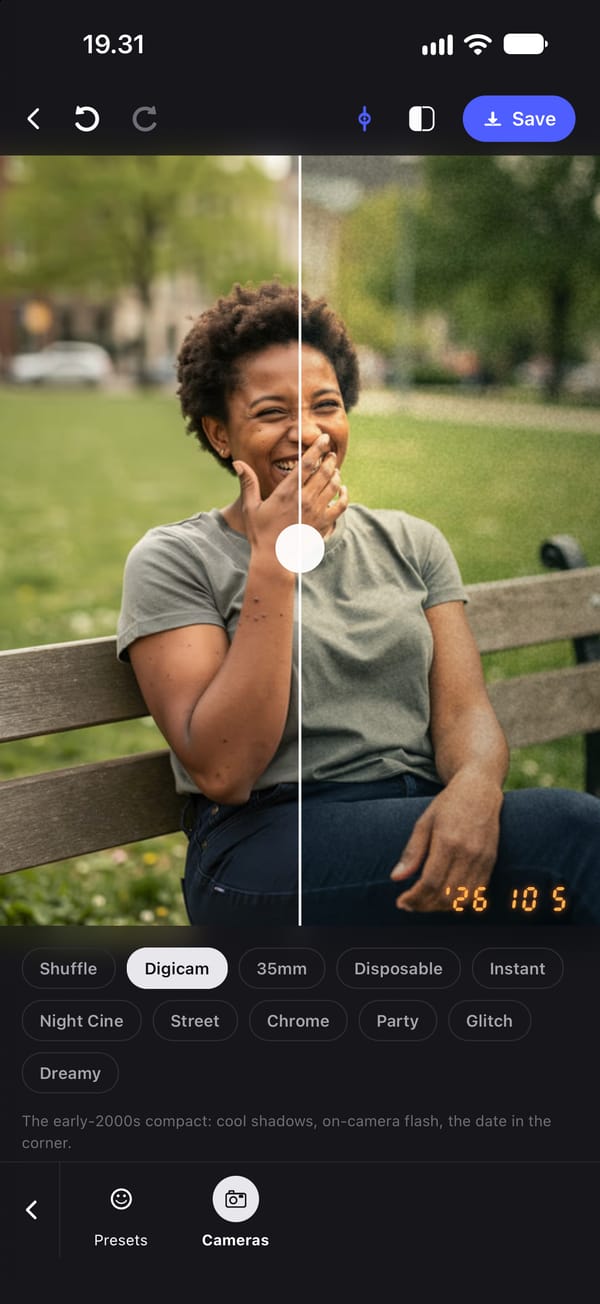
The digicam look, in one tap
The digicam look is what a small point-and-shoot camera from the early 2000s made: slightly cool shadows with a green cast, cream highlights, colour pushed up, a hard on-camera flash and the date printed in orange in the corner. Open Cameras, tap Digicam, and all of it lands at once: the Digicam colour grade, Flash aimed at the face, and the date stamp.
Every part stays adjustable afterwards. The colour grade has its own Intensity, Flash is a slider under Effects, and the date stamp is a switch under Frames, so the look can be turned down to a hint or taken further than the camera ever went.
A flash that lights the face, not the whole photo
Flash finds the face in the photo and lights it: the subject gets brighter, a touch whiter, and the background falls away into shadow, which is what an on-camera flash does. The highlights roll off rather than burning to white, so a forehead keeps its detail even with the slider up.
The flash never changes the face itself. Nothing is generated and no feature moves; it is light on the photo you took, worked out on the phone.
Film grain, light leaks, dust and the date stamp
The Digicam grade carries its own film grain, sized to the photo so it looks the same on the screen and in the saved file. Film FX adds the rest of the analogue texture: four warm light leaks (Ember, Sunset, Rose and Flare) and Dust & scratches, which lays specks and faint hairline scratches over the photo the way a scanned negative collects them.
The date stamp is drawn as seven-segment LED digits in orange with a soft glow. It prints the date the photo was taken, read from the photo on your phone, or today's date if the photo does not have one.
Film looks and camera presets
Cameras holds ten complete looks. Digicam and 35mm are compact cameras with the date on; Disposable adds a light leak and dust; Instant puts the photo in an instant-print frame; Night Cine is tungsten cinema film with a red glow round the lights; Street is grainy black and white on a negative strip; Chrome is muted slide film; Party is flash with the background dragged sideways; Glitch is digital damage; Dreamy is a soft glow with a rose leak.
Shuffle picks one at random, never the one already on, which is the quickest way to find a look you would not have chosen. Cameras change only the look. Skin, teeth, eyes and your own lighting stay exactly as you set them.
Frames and borders
Frames puts a border round the finished photo: White, a gallery mat; Instant, with the deep bottom edge of an instant print; and Film, a black negative strip with sprocket holes along the long side. The frame goes round the photo rather than over it, so nothing is cropped and the saved photo is simply bigger.
More than a filter
Every setting on this page lives in a Preset with the rest of the edit. Save a look once and apply it to the next photo with one tap, or turn the Preset's strength dial down to use it lightly. Everything on this page runs on your phone, with no connection and no upload.
How to get the digicam look on iPhone
- 01
Open a photo and choose Cameras
Cameras sits beside Presets. It works on any photo, with or without a face.
- 02
Tap Digicam
The colour, the flash on the face and the date stamp are applied together.
- 03
Adjust the parts
Turn Flash up or down under Effects, and the grade's Intensity under Filters.
- 04
Add texture if you want it
Film FX adds a light leak or dust and scratches; Frames adds a border.
- 05
Save it or keep it as a Preset
Export to your camera roll, or save the look to use on the next photo.
FAQ
Digicam filter: common questions
Still have a question?
Anything not answered here — a device, a photo it struggled with, or how the trial works — reaches a person at this address.
Ask a questionHow do I get the digicam filter look on iPhone?
Open the photo, choose Cameras and tap Digicam. It applies a cool digicam colour grade, a flash on the face and the orange date stamp, each adjustable afterwards.
Can I add a date stamp to a photo?
Yes. Frames has a Date stamp switch. It prints the date the photo was taken in orange LED digits, or today's date when the photo does not carry one.
Does the flash effect change my face?
No. Flash is light on the photo, aimed at the face it finds. It does not generate anything and does not move or reshape any feature.
Does applying a camera undo my retouching?
No. A camera sets only the look: the colour grade, effects, texture and frame. Skin, teeth, eyes and your own lighting stay as they were.
Does it work offline?
Yes. The digicam look, film looks, frames and date stamp all run on the phone.
Related tools
- Brighten photo
Brighten a dark photo on iPhone
Brighten a dark photo on iPhone with Exposure and Contrast, then warm it up or add a colour grade. Works on any photo and runs on your phone.
- Natural retouch
Natural photo retouch for iPhone
A natural photo retouch app for iPhone. Smooth skin, clear blemishes and fix lighting while pores and skin texture stay. Retouching runs on your phone.
- Reusable edits
Save photo edits and apply them to other photos
Save photo edits as a Preset on iPhone and apply them to other photos in a tap, or to up to 100 at once. Skin, whitening, lighting and colour, reused across faces.