 PhotoTune
 Home / Guides / Add makeup to an iPhone photo
How to add makeup to a photo on iPhone
Short answer
The iPhone's Photos app has no makeup tool: none of the editing tools in Apple's iOS 27 guide adds makeup. If you have not taken the photo yet, a makeup Lens in Snapchat's camera puts it on as you shoot. For a photo you already have, PhotoTune's Makeup tool adds an Everyday, Soft, Evening or Bold look. It is an AI tool, so the photo is sent for editing when you tap it, and not stored.
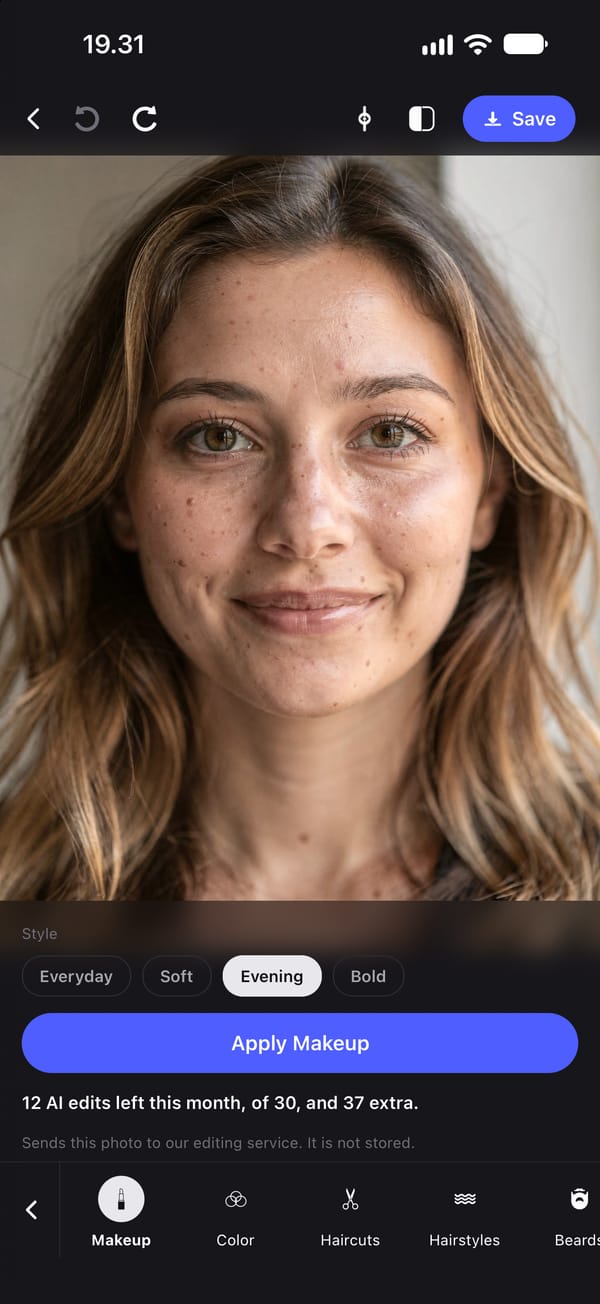
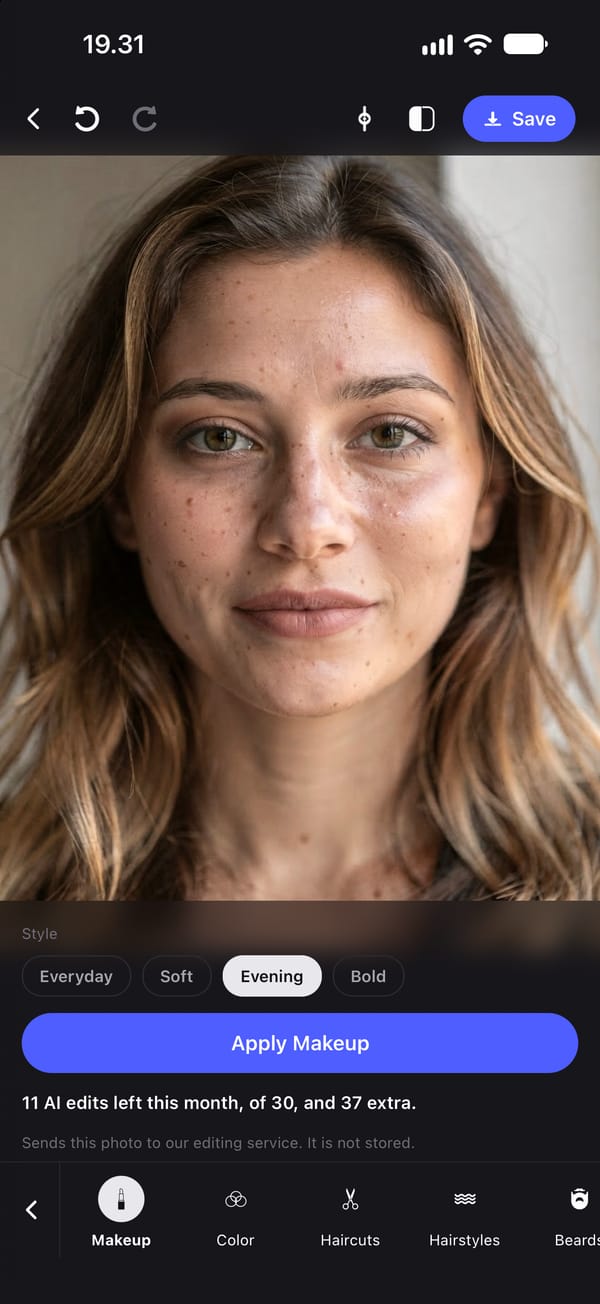
Two ways to add makeup to a photo on iPhone, compared
| Snapchat Lens | PhotoTune Makeup | |
|---|---|---|
| Works on | A photo you are taking now, in Snapchat's camera | A photo you already have |
| How | Tap a makeup Lens, then take the photo | Choose one of four looks, then tap Apply Makeup |
| Choice of looks | Whichever makeup Lenses are on offer. They change often | Everyday, Soft, Evening or Bold. No colour or strength controls |
| Needs a connection | Snapchat's help pages we read do not say | Yes. The photo is sent when you tap, and not stored |
| Cost | Free app, with in-app purchases | One AI edit per look. Saving needs a subscription |
| Use it when | The photo is not taken yet, you want to see the look first, or you want video | The photo already exists and you want a subtle look on it |
Add makeup as you take the photo, with a Snapchat Lens
Snapchat's camera has Lenses, augmented-reality effects you choose before you take the picture, so you see the makeup on your face while you frame the shot. Snapchat publishes makeup Lenses of its own: its Fresh Makeup Lens, for one, is listed with winged eyeliner, fuller lashes, rosy blush and pink lipstick.
It is the only way here that puts the makeup on before the photo exists, and it works for video too. We did not test Snapchat for this guide; the steps are from its own help pages.
What you need: The Snapchat app, free on the App Store with in-app purchases, and a photo you have not taken yet.
-
Set Snapchat to save to your Camera Roll
Snapchat's help page gives the route: in My Account, tap the gear to open Settings, then App & Privacy, My App, Memories and Save Button. Choose Memories & Camera Roll, so the photo also lands in your iPhone's library.
-
Go to the Camera screen
Snapchat opens on its camera, and its help page starts every Lens from this screen.
-
Swipe the Lens carousel and tap a makeup Lens
Swipe along the row of Lenses and tap one to try it on. Snapchat's help page also points to Lens Explorer for more.
-
Tap the camera button
Tap to take a photo, or press and hold to record a video with the Lens on.
-
Save the Snap
With the setting from the first step, saving puts the photo in Memories and in your Camera Roll.
Where it falls short
A Lens works through the camera, on a photo as you take it. Snapchat's help describes choosing a Lens and then capturing the Snap, and says nothing about putting a Face Lens on a photo already in your library, so for a photo you already have this is the wrong tool. The look is whatever the Lens's maker chose: Snapchat's own Fresh Makeup Lens is listed with freckles and fuller lashes as well as lipstick, so a Lens can change more than makeup. And the Lenses on offer change. Snapchat's App Store listing says new ones arrive daily, made by its community, so the one you liked may not be there next time.
Add makeup to a photo you already have, with PhotoTune's Makeup tool
Makeup is one of PhotoTune's AI tools. You choose one of four looks, Everyday, Soft, Evening or Bold, and tap Apply Makeup. That sends the photo to our editing service, which passes it to Google's Gemini model and returns the result. We do not store the photo, and nothing is sent until you tap.
Every look is asked for the same way: subtle, natural makeup in that style, with the face shape, bone structure and skin texture kept exactly, nothing slimmed, reshaped or smoothed, and nothing changed but the makeup. Our service writes that request. You choose a look, not the words.
What you need: An iPhone, the app, a connection, and an AI edit from your allowance.
-
Open the photo
Tap it on Home, which is your camera roll, or tap the plus button to pick one. Choose a photo where the face is clear and well lit.
-
Swipe the groups to AI, then tap Makeup
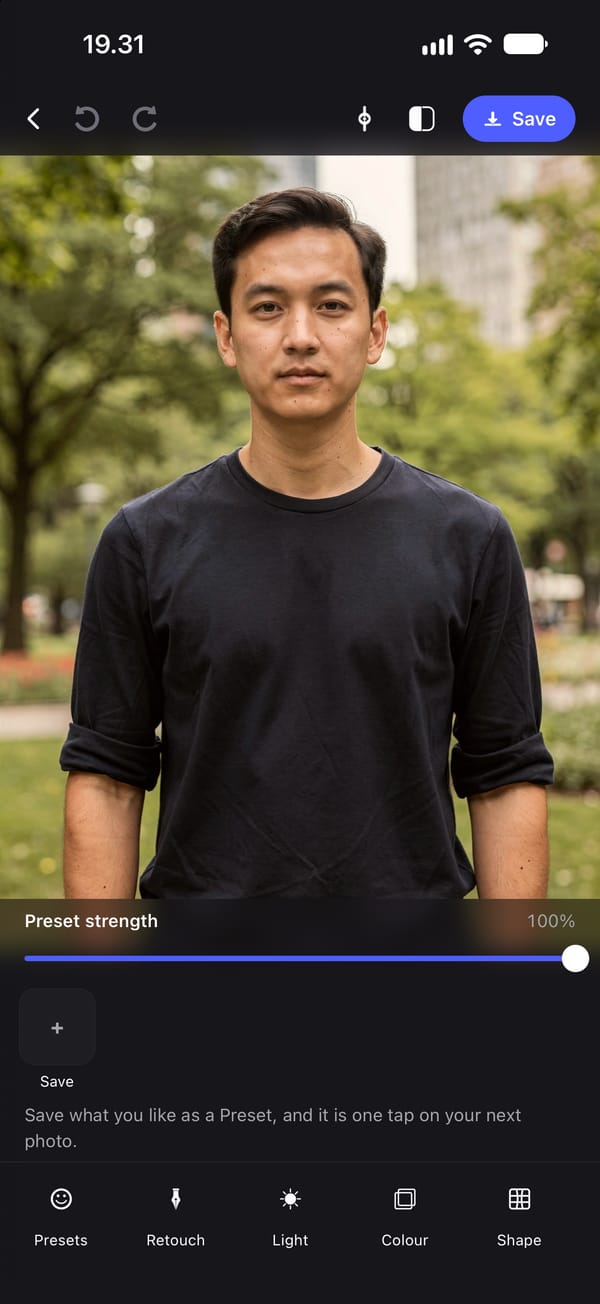
The groups run along the bottom of the editor: Presets, Retouch, Light, Colour, Shape, Remove and AI. AI is the last, so swipe the row to the left. Makeup is its first tool.
-
Choose a look under Style
Everyday, Soft, Evening or Bold. The line under the button says how many AI edits you have left. If you signed up with an email address, the free ones need it verified first, and the line says that too.
-
Tap Apply Makeup
This is the moment the photo is sent, and the line under the button says so. The result comes back after a short wait and replaces the photo on screen. If the service is busy, it says so, and that try is not counted.
-
Compare with undo, and undo before the next look
Undo at the top of the editor shows the photo as it was, and redo brings the makeup back. To try a different look, undo first. A second look applied without undoing goes on top of the first.
-
Finish on the phone, then save
Skin, Whiten and Lighting work on the result without a connection. Save writes a new JPEG to your camera roll with no watermark, and the photo you opened is not changed.
Where it falls short
Makeup is generative, so the result varies and more than the makeup can change: in the example on this page her smile relaxed, though the request asks for nothing but makeup. It needs a connection, every look you apply uses one AI edit, and an edit the service declines still counts. You get four complete looks and nothing finer: no lipstick colour and no strength slider. The edit is made on a copy of the photo up to 2048 pixels on its long side, so the result is not at your camera's full resolution. And with several people in the photo, the model decides who gets the makeup.
What the iPhone Photos app can and cannot do
Apple's guide to editing photos in iOS 27 covers light and colour adjustments such as Exposure, Brilliance and Highlights, Photographic Styles, filters, copying edits from one photo to others, and adding stickers, text and shapes. On iPhones with Apple Intelligence there are three more tools: Clean Up removes distracting objects, Extend expands a photo past its frame, and Reframe changes the perspective. None of them adds makeup, and none changes the colour of just the eyes or the lips.
Where Photos still helps is the light: makeup, added any way, is hard to judge on a face that is too dark. Fix that in Photos, or with Lighting in PhotoTune, which applies on top of the makeup.
How to keep added makeup believable
Start with Everyday or Soft. A light look is easier to judge, and if it is not enough, Evening or Bold is one undo and one tap away.
Then check what the makeup should not have touched. Real makeup sits on skin, so freckles, pores and fine lines should still be there, and the expression should be the one the camera caught. In the example on this page the freckles survived and the smile did not. Look at the photo at the size people will see it, not zoomed in on one eye, and if more than the makeup changed, undo and try again.
Choosing a lipstick colour, in Facetune and other apps
Some editors split makeup into separate products. Facetune's page describes a feed of preset looks, among them natural, glam, night, glossy, dewy and no-makeup styles, each with an intensity slider, and separate tools in its full editor for eyeliner, lipstick and lashes, with a Paint tool for adding blush and lip colour.
If you want to choose the exact lipstick shade, or turn a look down by half, an editor built that way is the better choice. PhotoTune's Makeup has four complete looks and no slider.
Getting PhotoTune
PhotoTune is an iPhone app; there is no Android or web version. Saving an edited photo needs a subscription, and the annual plan starts with 3 days free. The pricing page has every plan and what the trial turns into.
Sources
What this guide says about software other than PhotoTune comes from the pages below, read on the dates shown. The PhotoTune screenshots are captures of the app.
- Apple: Edit photos and videos on iPhone (iOS 27) checked
- Apple: Clean up, extend, and reframe photos on iPhone (iOS 27) checked
- Snapchat Support: How do I use Lenses on Snapchat? checked
- Snapchat Support: How do I save a Snap to Memories and Camera Roll? checked
- Snapchat: Fresh Makeup Lens checked
- Snapchat on the App Store checked
- Facetune: Makeup Photo Editor checked
FAQ
Add makeup to an iPhone photo: common questions
Still have a question?
Anything not answered here — a device, a photo it struggled with, or how the trial works — reaches a person at this address.
Ask a questionCan you add makeup to a photo in the iPhone Photos app?
No. Apple's iOS 27 guide to editing photos lists light and colour adjustments, styles, filters, stickers and text, and the Apple Intelligence tools Clean Up, Extend and Reframe. None of them adds makeup.
Can I put a Snapchat makeup Lens on a photo I already took?
Snapchat's help page describes Face Lenses in the camera: you tap a Lens, then capture the Snap. It does not describe putting one on a photo already in your library, so for a photo you already have, use an editor instead.
Can I choose the lipstick colour in PhotoTune?
No. Makeup has four complete looks, Everyday, Soft, Evening and Bold, and no controls for single products or for strength. Facetune's page describes separate lipstick and blush tools.
Is my photo sent anywhere when I add makeup in PhotoTune?
Yes, for this tool. Tapping Apply Makeup sends that photo to our editing service, which passes it to Google's Gemini and returns the result. We do not store it. The tools you finish with, such as Skin, Whiten and Lighting, run on the iPhone.
How many makeup looks can I try?
Each look you apply uses one AI edit, including ones you undo afterwards. A subscription includes 30 AI edits a month, the free trial includes 5, and an account with no subscription gets 3 to try, once. The line under Apply Makeup says how many you have left.
Will adding makeup change my face?
The request tells the model to keep the face shape, bone structure and skin texture exactly and to change only the makeup. Generative results still vary: in the example on this page her smile relaxed. Undo shows the photo as it was, so compare before you save.
The tools in this guide
- Makeup editor
Add makeup to a photo on iPhone
Add makeup to a photo on iPhone in four looks: Everyday, Soft, Evening or Bold. Subtle, natural results that keep your skin texture and face shape.
- Natural retouch
Natural photo retouch for iPhone
A natural photo retouch app for iPhone. Smooth skin, clear blemishes and fix lighting while pores and skin texture stay. Retouching runs on your phone.
- Teeth whitening
Whiten teeth in photos on iPhone
Whiten teeth in photos on iPhone without the bright white look. A teeth whitening app with sliders for teeth and eye whites, placed by face detection on your phone.